---
title: Developer & Tenant Onboarding
description: Cross-developer portfolio dashboard, Companies directory, onboarding new solar developer tenants, configuring Active meter limits, provisioning first company admins, and moving entities.
---
# Developer & Tenant Onboarding
**Who is this for:** Platform Administrator (Platform ADMIN) Central Operations Team (Platform SERVICE, portfolio view only)
---
## 1. Cross-Developer Portfolio Dashboard
After signing in with a platform account, the **Dashboard** gives a unified real-time overview across every developer tenant and customer site:
1. **Top Portfolio Switcher:** Select **All developers** to monitor the entire platform, or filter to a single Solar Developer company.
2. **Health Strip:** Monitor live counts for `online`, `offline`, `not reporting`, `meters with alarms`, and HES projection lag. Click any chip to jump directly to the filtered meter list.
3. **4 Summary KPI Cards:** **Today Energy (kWh)**, **Today Value (THB)** *(intentionally renders `-` when aggregating sites on differing tariffs)*, **Month Cumulative Energy (kWh)**, and **Total Installed Capacity (kWp)**.
4. **Action Queue:** Highlights urgent cross-tenant tasks on the right rail, including **Verify Ft rate for YYYY-MM** (allowing immediate one-click Ft confirmation directly from the dashboard), active alarms, invoices awaiting action, and late telemetry intervals.
5. **Generation Curves & Site List:** Toggle **Day / Month / Year**, compare against clear-sky expected curves, expand **TOU Day/Month Summary**, or toggle **Table / Cards**.
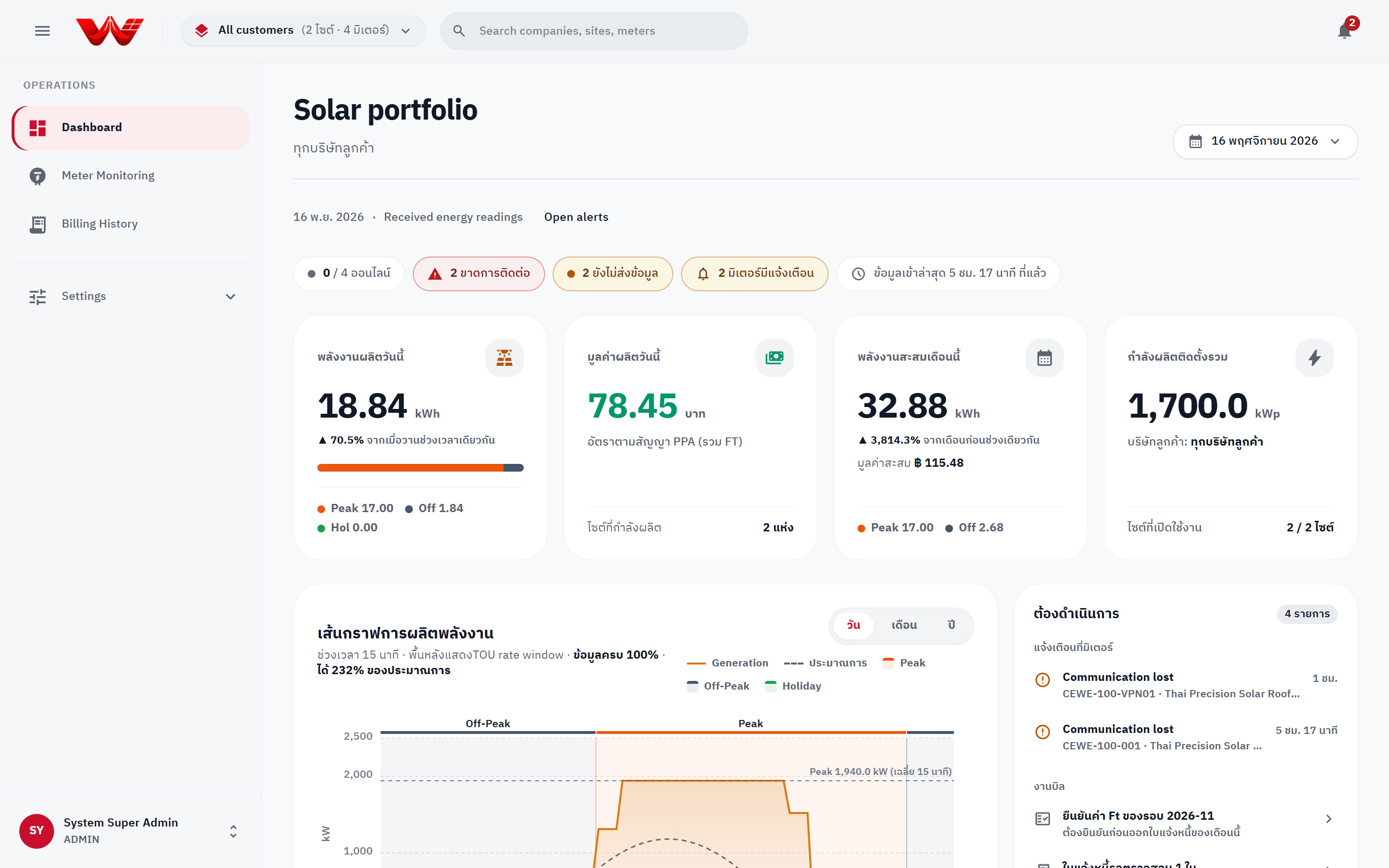
*Figure 1: Platform Admin Portfolio Dashboard across all developers with Health Strip and Action Queue.*
---
## 2. Companies Directory & Creating Solar Developers
Only **Platform administrators (`org.admin`)** can create solar developer companies, delete organizations, change organization types, or adjust active meter limits.
### Browsing the Companies Directory
1. Click **Settings** > **Companies** in the left navigation sidebar.
2. Use **Search companies** to filter by Thai/English name or ID.
3. Organizations are grouped under **Platform administration**, **Developer companies**, and **Unassigned customers**.
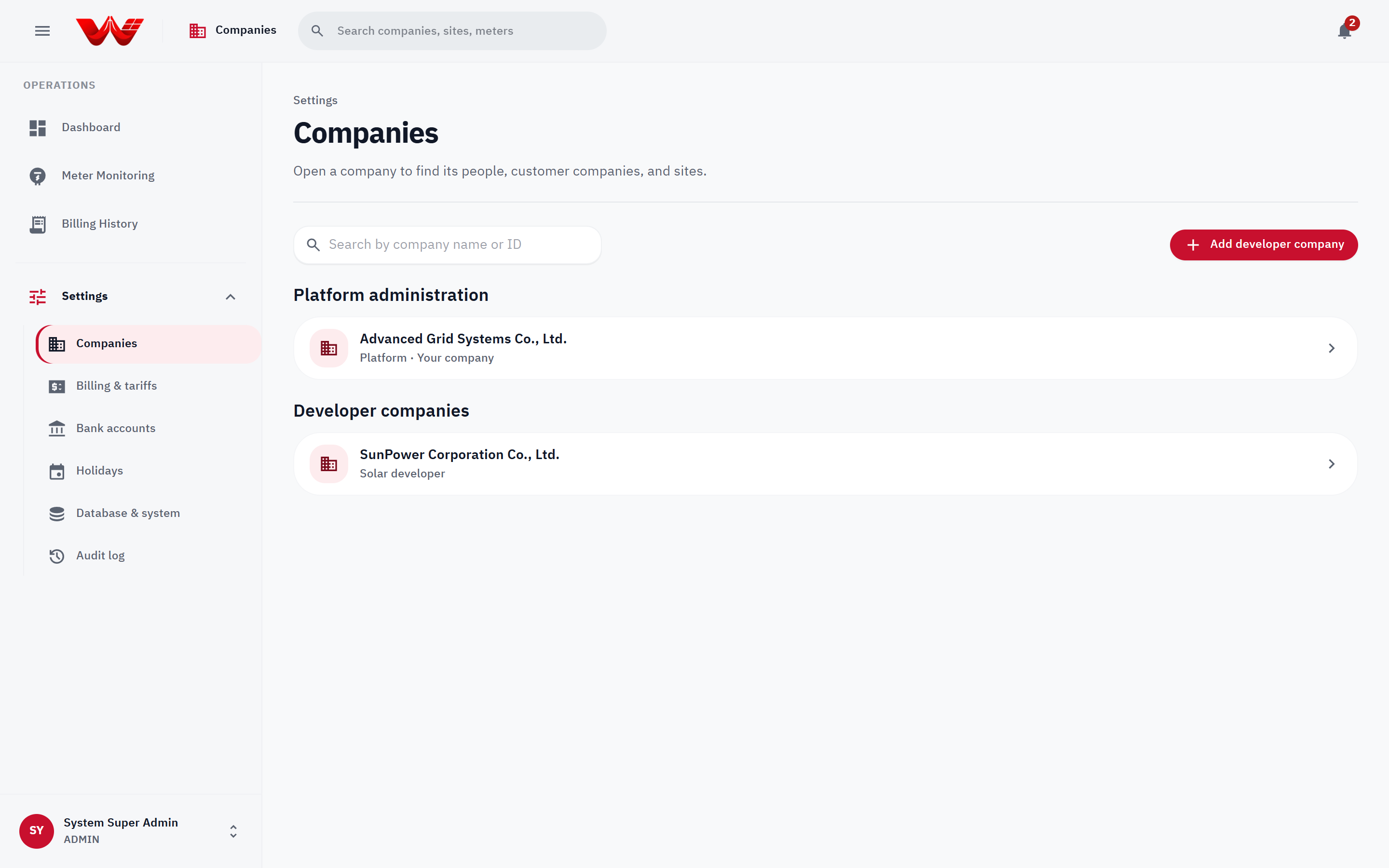
*Figure 2: Companies directory grouped by tier, with the Add developer company action.*
### Creating a New Solar Developer Company
1. On **Settings > Companies**, click **Add developer company**.
2. Enter **Company name (Thai)** and **Company name (English)** *(required)*.
3. Keep **Organization type** set to **Solar developer**.
4. Enter tax and invoicing details: **Tax ID (13 digits)**, **Phone (shown on invoices)**, **Billing email**, and **Head office address (shown on tax invoices)**.
5. Optionally enter **Authorized signatory name**, **Signatory title**, and upload the **Authorized signature (transparent PNG/JPG/WebP)** and **Company logo**.
6. Click **Add company** to save.
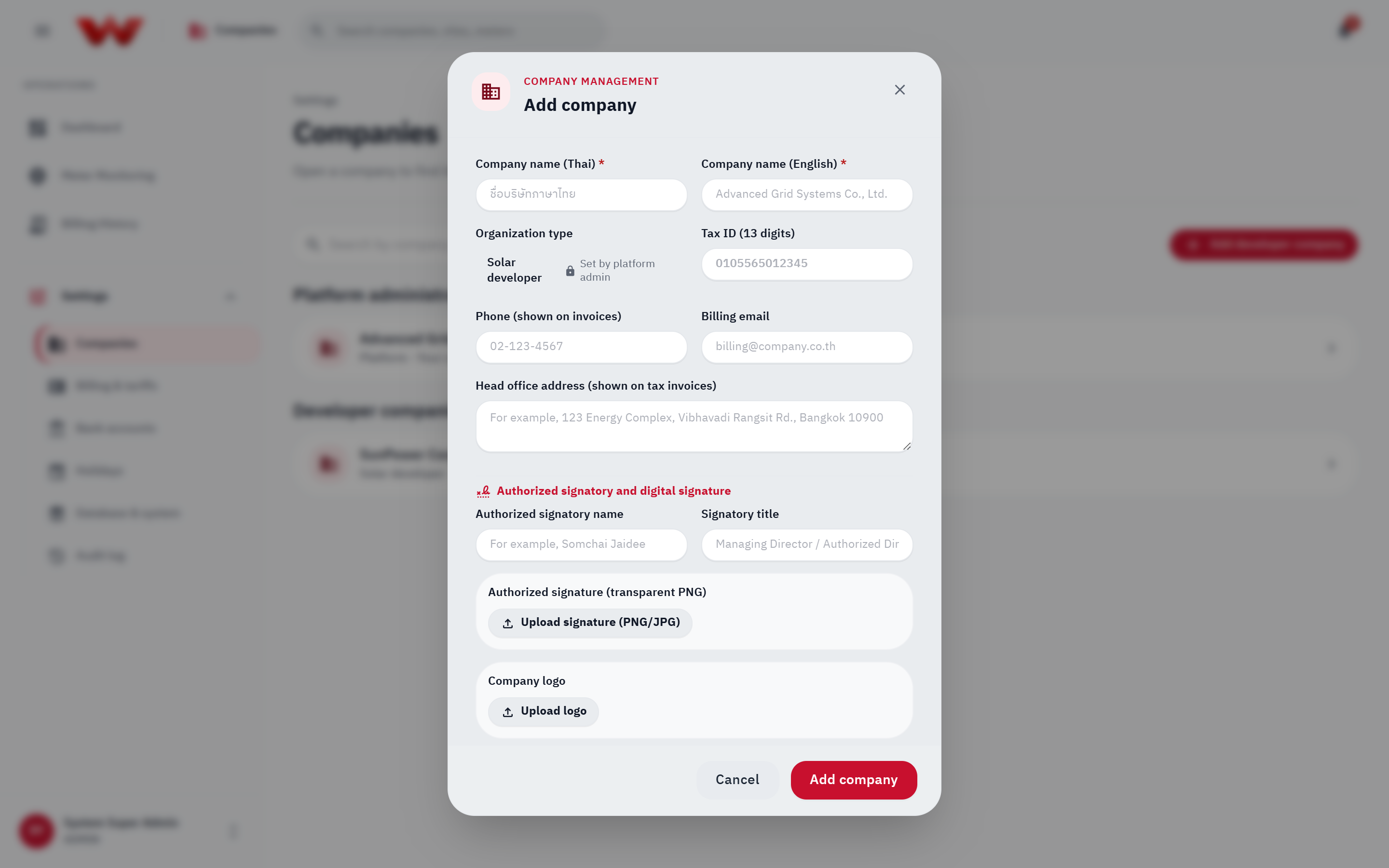
*Figure 3: Add company modal for creating a new solar developer tenant.*
---
## 3. Setting Active Meter Limits & Provisioning the First Company Admin
1. Open the newly created developer company, go to **Company information**, and click **Edit company profile**.
2. Set **Active meter limit** (default `100,000` active meters per developer; inactive meters are excluded) and click **Save changes**.
3. Switch to the **People & access** tab and click **Add user**.
4. Provision the tenant's first **Company administrator (`Developer ADMIN`)** with either a manual password or an auto-generated temporary password (shown once) so the developer can begin onboarding their off-takers, sites, and staff.
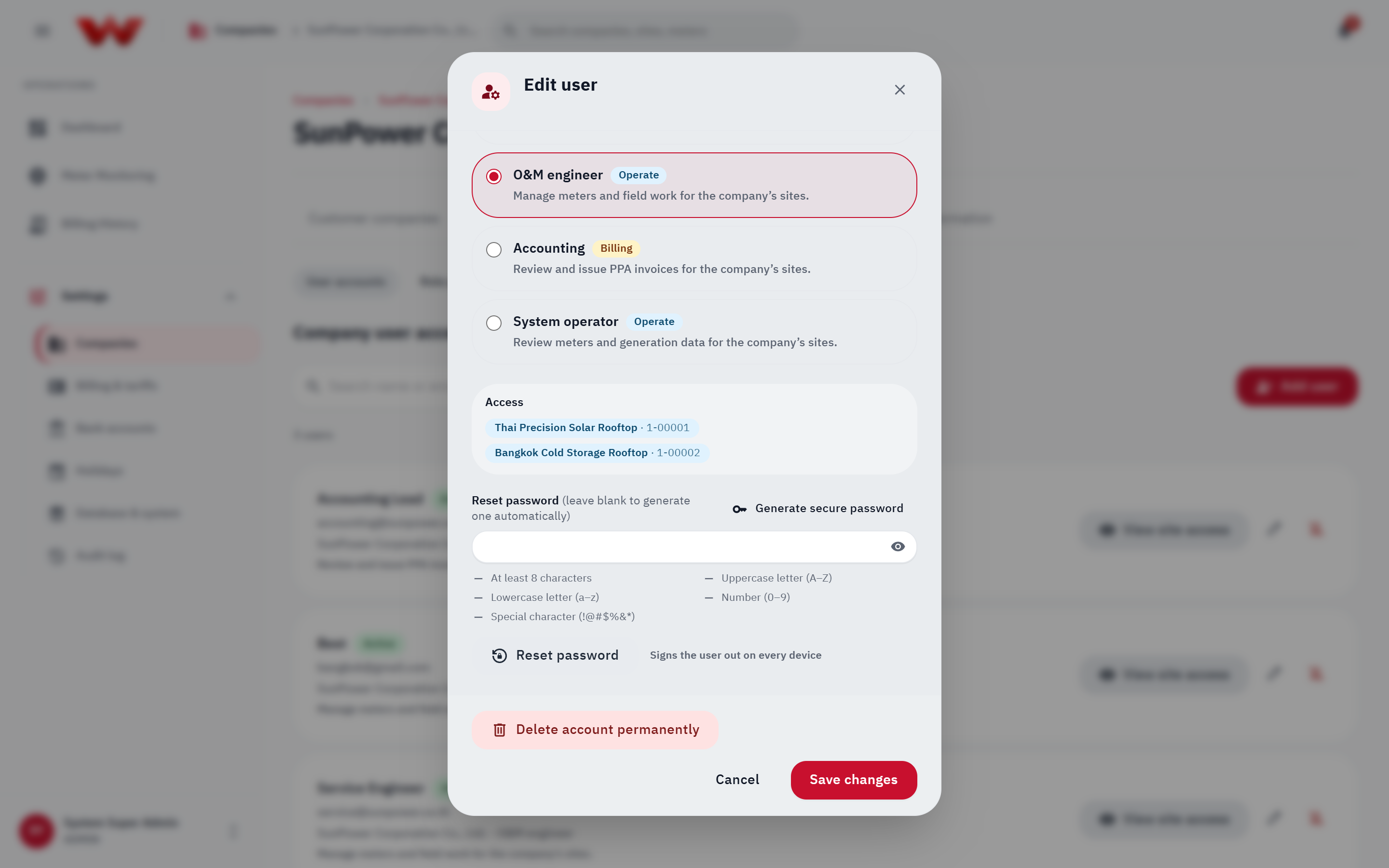
*Figure 4: People & access screen used to create the developer's first administrator and verify reachable sites.*
::: tip Cross-Tenant Transfers & Deleting a Company
- **Reassigning users or sites:** Only a **Platform administrator** can move an existing user between organizations or transfer an existing site to a different customer company.
- **Deleting a company:** Clicking **Delete company** removes the company from active management while preserving previously issued invoices intact for tax audit compliance.
:::
---
## Next Steps
- [Chapter 03: Global Tariffs, Ft Rates, Bank Accounts & Holidays](./03-global-tariffs-ft-and-reference-data)
- [Chapter 04: VPN Profiles, HES & Meter Identity](./04-vpn-hes-and-meter-identity)