
Global Tariffs, Ft Rates, Bank Accounts & Holidays
Who is this for: Platform Administrator (Platform ADMIN)
1. Tariffs & Billing Precision Rules (Settings > Billing & tariffs)
Only Platform administrators can publish or edit system-wide billing reference data (ftrate.write, bank.write, holiday.write).
Tab 1: Tariffs (Tariff structures)
- Review the Current billing rules strip at the top (billing cut-off day, decimal places for energy/rate/amount, and power factor penalty threshold/rate).
- Click Add tariff or Edit on an existing schedule (such as PEA TOU).
- Configure Tariff category, Start date / End date, Peak / Off-peak / Holiday rates, Service charge, and Bill calculation type (
With FtorWithout Ft). - Expand Advanced billing rules to set contract defaults:
- Billing cut-off day (
1–28) (e.g.25covers the 25th to the 24th of the following month) - Payment due (
0–120days after cut-off) - Decimal places: energy (
0–4), rate (2–6), amount (0–4) - Power factor penalty (PEA): enable/disable, Minimum PF threshold (
0.85), and Penalty rate (56.07THB/kVAR)
- Billing cut-off day (
- Click Save changes, or click CSV to export the tariff schedule table.
Billing Cut-Off Day Locks After First Invoice (409)
Once a site has any non-rejected invoice, its Billing cut-off day locks (409) so historical billing periods never overlap or leave gaps. Non-cut-off fields still update, and the portal reports which sites kept their original cut-off day.
Tab 2: Monthly Ft Rates (ftrate.write)
- Switch to Monthly Ft rates (or click Verify Ft rate directly from the
/billingwarning banner or Dashboard Action Queue). - Click Publish Ft rate (or Edit an unlocked month row).
- Enter Billing month in
YYYY-MMformat (e.g.,2026-10). - Enter the official ERC Ft rate (THB/kWh) between
-2.0000and10.0000(e.g.,0.3972). - Click Save Ft rate.
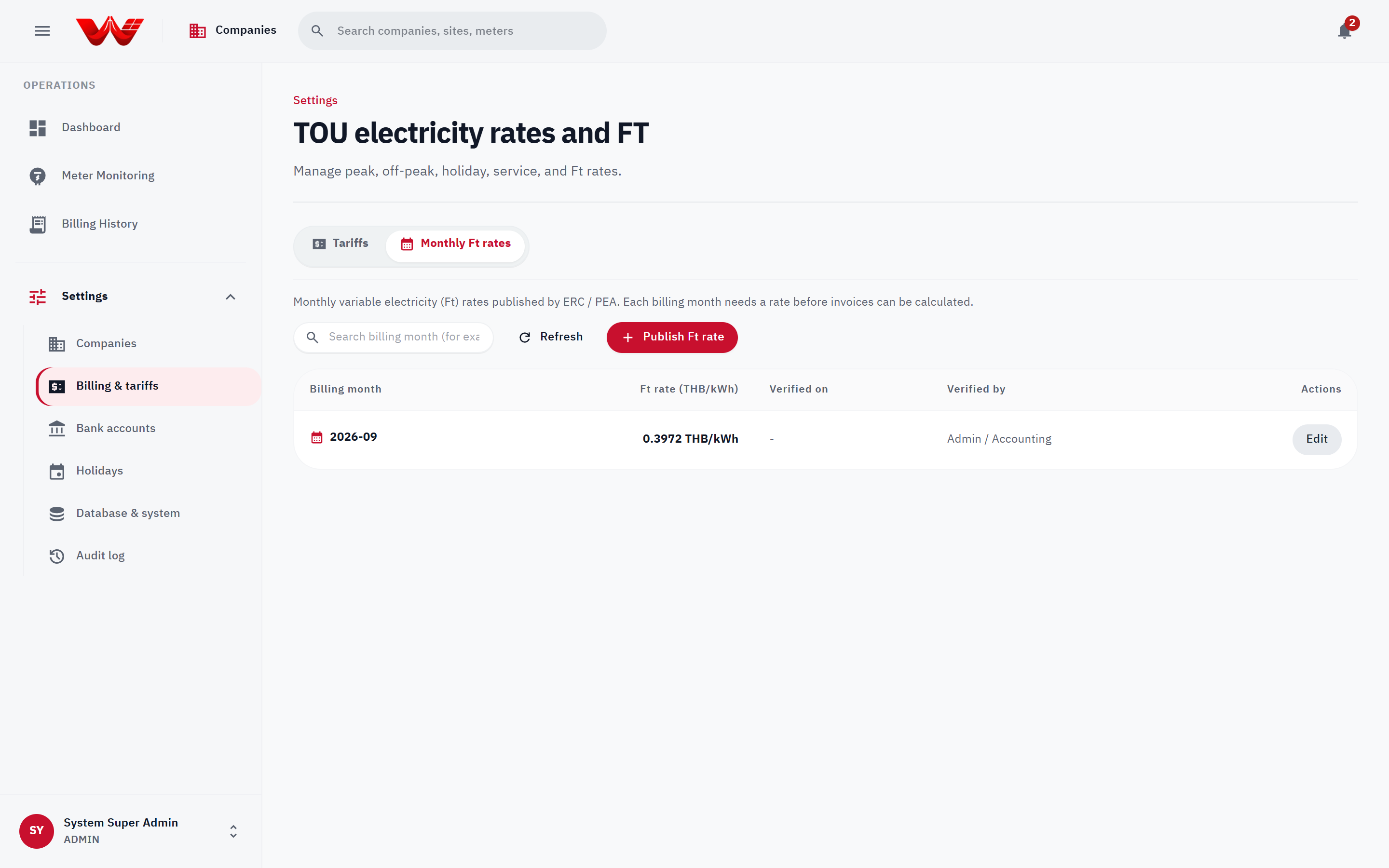 Figure 1: Billing & tariffs screen showing Tariffs and Monthly Ft rates management tabs.
Mandatory Ft Enforcement (422) & Month Lock
- Real invoice previews and generation strictly refuse (
422) any billing month without a saved Ft rate. (Only the exploratory Compare PPA rate with utility modal/api/billing/rate-comparisonfalls back to0.3972THB/kWh with a visible yellow fallback warning banner.) - Once at least one invoice for
YYYY-MMentersCHECKEDorAPPROVED, that month's Ft rate is locked against modification.
2. Payment Bank Accounts (Settings > Bank accounts)
- Open Bank accounts under Settings.
- Click Add bank account (or Edit an existing account).
- Enter Bank name, Branch, and select Seller (company receiving payments):
- Platform (shared by all sellers): Default bank account printed on invoices when no seller-specific account is configured.
- Specific Solar developer: Prints that developer's dedicated collection bank account on their invoices and PDF exports.
- Fill in Account name, Account number, and PromptPay / QR number, then click Add account / Save changes.
3. Public Holiday Calendar (Settings > Holidays)
Generation recorded on weekends and dates listed in this calendar (evaluated on Asia/Bangkok calendar dates) automatically classifies as Rate C (Holiday Off-Peak) for all 24 hours.
- Open Holidays under Settings.
- Annual preset load: Select
2025,2026, or2027under Load annual public holidays (PEA / MEA calendar) and click Load annual holidays. - Single holiday entry: Select Holiday date (
YYYY-MM-DD), enter an optional Holiday name, and click Add holiday.
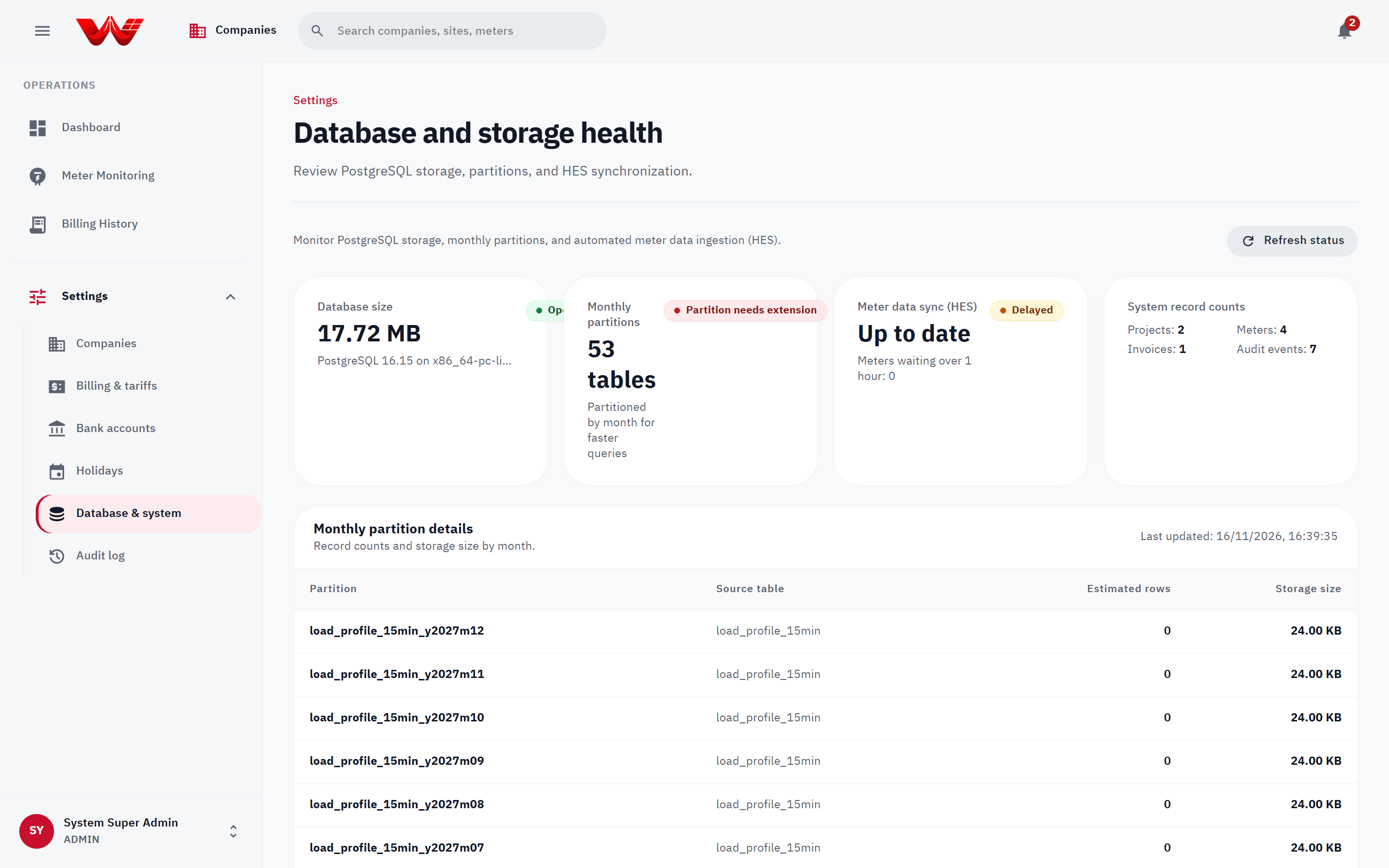 Figure 2: Shared reference and governance workspace (Bank accounts, Holidays, Database health, and Audit log).