
# WattDee Bilingual Platform Admin Manual (TH + EN) # คู่มือผู้ดูแลแพลตฟอร์ม WattDee (ภาษาไทย) ## คู่มือผู้ดูแลแพลตฟอร์ม WattDee (ภาษาไทย) Source: https://admin-docs.wattdee.com/th/ ::: warning เอกสารภายในสำหรับทีมแพลตฟอร์ม (UAT / Alpha) คู่มือนี้อธิบายขั้นตอนสำหรับ **ผู้ดูแลแพลตฟอร์ม (`Platform ADMIN`)** และ **ทีมปฏิบัติการส่วนกลาง (`Platform SERVICE`)** เท่านั้น สำหรับคู่มือผู้พัฒนาโครงการและลูกค้า ให้ดูที่ `https://docs.wattdee.com` :::
WattDee LogoWattDee Platform Admin Manual

คู่มือผู้ดูแลแพลตฟอร์ม WattDee (ฉบับภาษาไทย)

คู่มือปฏิบัติการสำหรับผู้ดูแลระบบส่วนกลาง ครอบคลุมการดูแลพอร์ตโฟลิโอทุกผู้พัฒนา การสร้างบริษัทผู้พัฒนาโครงการ กำหนดโควตามิเตอร์ ประกาศค่า Ft รายเดือน จัดการวันหยุด บัญชีธนาคาร โปรไฟล์ VPN, HES การยืนยัน Serial มิเตอร์ ฐานข้อมูล และ Audit Log
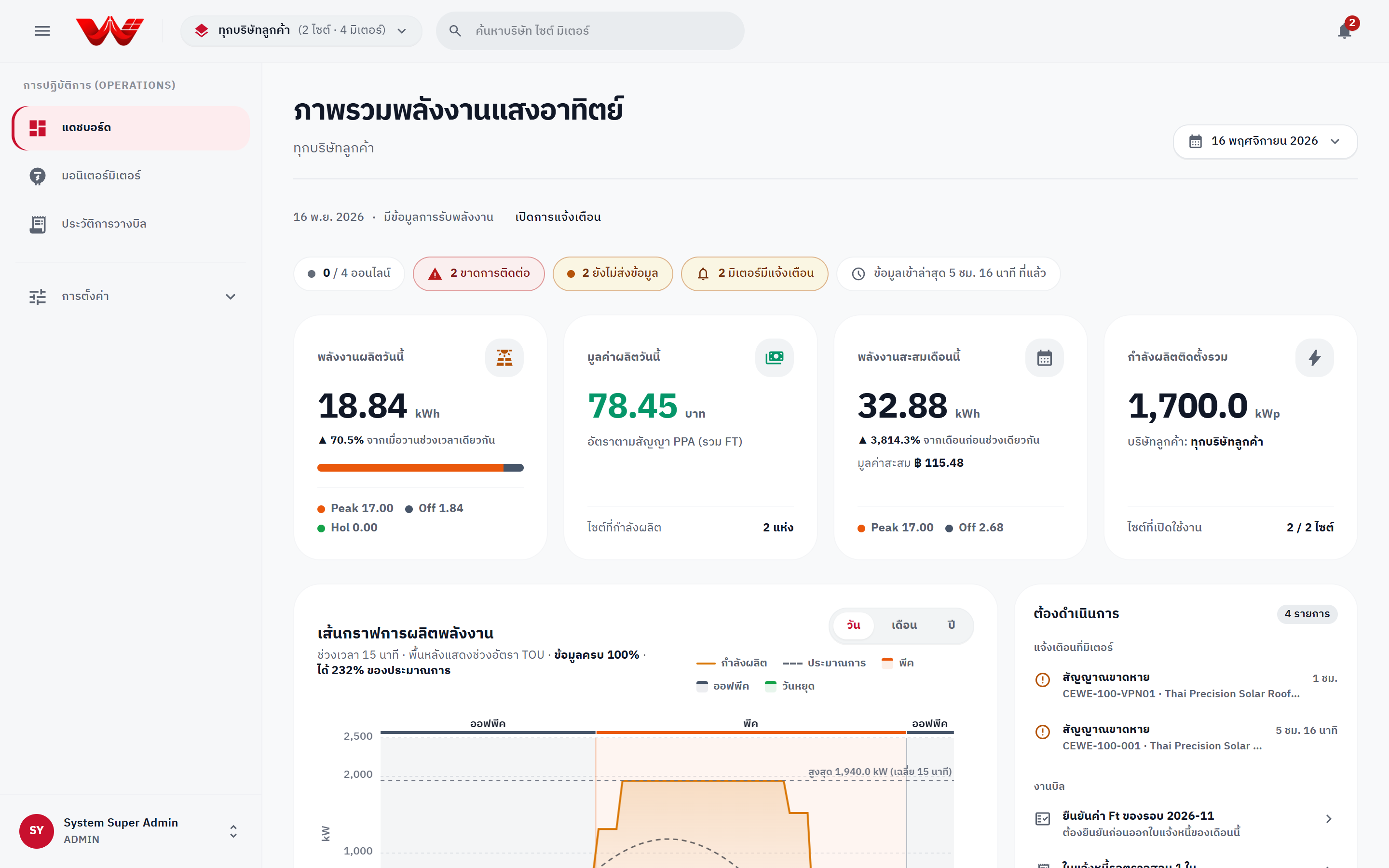
แดชบอร์ดภาพรวมทุกผู้พัฒนาโครงการของผู้ดูแลแพลตฟอร์ม
## สารบัญคู่มือผู้ดูแลแพลตฟอร์มทั้ง 5 บท
บทที่ 01 บทบาทและการกำกับดูแลแพลตฟอร์ม โครงสร้างองค์กร SUPER_ADMIN สิทธิ์ทั้ง 33 รายการของ Platform ADMIN และสิทธิ์ 9 รายการของ Platform SERVICE บทที่ 02 การสร้างบริษัทผู้พัฒนาและโควตา ตัวสลับทุกผู้พัฒนา สารบบบริษัท การสร้างบริษัทผู้พัฒนา ขีดจำกัดมิเตอร์ สร้างผู้ดูแลคนแรก และย้ายไซต์ข้ามบริษัท บทที่ 03 อัตราค่าไฟ ค่า Ft ธนาคาร และวันหยุด ตารางอัตรา PEA TOU ประกาศและยืนยันอัตราค่า Ft รายเดือน บัญชีธนาคารรับชำระ และการเติมปฏิทินวันหยุดรายปี บทที่ 04 การจัดการ VPN, HES และ Serial มิเตอร์ โปรไฟล์ WireGuard, IPsec, OpenVPN นโยบายปลายทางมิเตอร์ การผูกมิเตอร์ และการแก้ Serial / ยืนยันสับเปลี่ยนมิเตอร์ บทที่ 05 สุขภาพฐานข้อมูล Audit Log และงานซัพพอร์ต ตรวจสอบพาร์ทิชันรายเดือน PostgreSQL, HES sync lag, System Audit Log, ย้ายภาพลายเซ็น และการใช้งาน AI / MCP
::: info AI Index & MCP ดัชนีเอกสารสำหรับ AI อยู่ที่ /llms.txt ไฟล์ฉบับเต็มภาษาไทยอยู่ที่ /th/llms-full.txt Remote MCP ที่ https://admin-docs.wattdee.com/api/mcp และ Local MCP ผ่าน `bun run docs:admin:mcp` ดูฉบับภาษาอังกฤษได้ที่ [English Admin Manual (`/en/`)](/en/) :::
--- ## บทบาทและการกำกับดูแลแพลตฟอร์ม Source: https://admin-docs.wattdee.com/th/01-platform-roles-and-governance ::: warning เอกสารภายในสำหรับทีมแพลตฟอร์ม คู่มือนี้อธิบายสิทธิ์และการดำเนินงานเฉพาะองค์กรเจ้าของแพลตฟอร์ม (`SUPER_ADMIN` / `org_avg_super`) เท่านั้น ::: # บทบาทและการกำกับดูแลแพลตฟอร์ม (Platform Roles & Governance) **ผู้ที่เกี่ยวข้อง:** ผู้ดูแลแพลตฟอร์ม (Platform ADMIN) ทีมปฏิบัติการส่วนกลาง (Platform SERVICE) --- ## 1. โครงสร้างสิทธิ์ระดับแพลตฟอร์ม (`SUPER_ADMIN`) ในระบบ WattDee บัญชีภายใต้บริษัทเจ้าของแพลตฟอร์ม (**Advanced Grid Co., Ltd.**, รหัสองค์กร `org_avg_super`, ประเภท `SUPER_ADMIN`) มีขอบเขตการมองเห็นข้ามทุกบริษัทผู้พัฒนาและทุกบริษัทลูกค้า (`tierOf(authCtx) === 'platform'`) โดยแบ่งหน้าที่ออกเป็น 2 บทบาทที่กำหนดได้ในระดับแพลตฟอร์ม (`ROLES_ASSIGNABLE.platform`): | บทบาท | ชื่อที่แสดงในหน้าจอ | จำนวนสิทธิ์ | ขอบเขตและหน้าที่ความรับผิดชอบ | | :--- | :--- | :---: | :--- | | **`ADMIN`** | **ผู้ดูแลแพลตฟอร์ม** (`Platform administrator`) | **33 / 33** | สิทธิ์สูงสุดทั้งระบบ ครอบคลุมทุกองค์กร ทุกไซต์ ทุกมิเตอร์ และข้อมูลอ้างอิงกลาง (`org.admin`, `ftrate.write`, `holiday.write`, `bank.write`, `vpn.manage`, `meter.identity.override`, `policy.read`, `invoice.*`, `telemetry.*`) | | **`SERVICE`** | **ทีมปฏิบัติการส่วนกลาง** (`Central operations team`) | **9 / 33** | ดูแลมิเตอร์และการสื่อสารของ **ทุกไซต์ในแพลตฟอร์ม**: ดูรายชื่อองค์กร, ลงทะเบียน/แก้ไข/สับเปลี่ยนมิเตอร์ (`meter.write`), ทดสอบเชื่อมต่อและสั่งอ่านค่า (`meter.command`), ดู IP/พอร์ต/ซิม (`meter.network.read`), ซ่อมแซมข้อมูล 15 นาที (`telemetry.sync`), ดูเหตุผลคุณภาพข้อมูล (`telemetry.quality.read`), จัดการแจ้งเตือน (`alert.manage`), ดูรายงานเทียบบิลคู่ขนาน (`invoice.compare`), และดูอัตรา Ft/วันหยุด (`reference.read`) *(ไม่สามารถจัดการผู้ใช้ แก้ไขค่าอ้างอิง ตั้งค่า VPN แก้ Serial หรือออก/อนุมัติใบแจ้งหนี้)* | ::: warning สิ่งที่สงวนสิทธิ์ไว้เฉพาะ Platform ADMIN เท่านั้น แม้ `Developer ADMIN` จะมีสิทธิ์บริหารบริษัทและลูกค้าของตนเองได้เกือบครบวงจร แต่ความสามารถด้านโครงสร้างพื้นฐานและการกำกับดูแลกลาง **6 รายการ** ต่อไปนี้ถูกสงวนไว้เฉพาะ `Platform ADMIN` เพื่อป้องกันการรบกวนข้ามองค์กร: 1. **`org.admin`**: สร้าง/ลบบริษัทผู้พัฒนา เปลี่ยนประเภทองค์กร ตั้งค่าขีดจำกัดมิเตอร์ ย้ายผู้ใช้ข้ามองค์กร และเปิดดู **ประวัติระบบ (Audit Log)** 2. **`ftrate.write`**: ประกาศและแก้ไขอัตรา **ค่า Ft รายเดือน** 3. **`holiday.write`**: เติมและแก้ไข **ปฏิทินวันหยุดราชการ** ประจำปี 4. **`bank.write`**: จัดการ **บัญชีธนาคารรับชำระ** (ทั้งบัญชีกลางและบัญชีแยกตามผู้พัฒนา) 5. **`vpn.manage`**: สร้าง/แก้ไข/เปิด-ปิด **โปรไฟล์ VPN** (WireGuard, IPsec, OpenVPN) และผูกมิเตอร์เข้ากับท่อ VPN 6. **`meter.identity.override`**: แก้ **Serial Number มิเตอร์** ด้วยเหตุผลบังคับ และยืนยัน **การสับเปลี่ยนมิเตอร์ที่ HES ตรวจพบ** รวมถึงการเปลี่ยนไฟล์ลงนามลูกค้าที่ถูกล็อก `409 Conflict` ::: --- ## 2. การตรวจสอบตารางสิทธิ์ (`GET /api/permissions` และหน้า Settings) 1. คลิก **การตั้งค่า (Settings)** > เลือกองค์กร (เช่น `Advanced Grid`, บริษัทผู้พัฒนา หรือบริษัทลูกค้า) 2. เปิดแท็บ **ผู้ใช้และสิทธิ์ (People & access)** แล้วคลิก **สิทธิ์ตามบทบาท (Role permissions)** 3. ตารางนี้แสดงผลแบบ **อ่านอย่างเดียว** โดยดึงข้อมูลตรงจาก `backend-api/src/auth/policy.ts` ผ่าน `GET /api/permissions` เพื่อตรวจสอบสิทธิ์ที่เซิร์ฟเวอร์บังคับใช้จริงของทุกบทบาทในองค์กรระดับแพลตฟอร์ม ระดับผู้พัฒนา และระดับลูกค้า ![ตารางสิทธิ์ตามบทบาทในหน้าการตั้งค่า](/screenshots/th/27-settings-permission-matrix.png) *ภาพที่ 1: หน้าจอตารางสิทธิ์ตามบทบาท (Role permissions) แบบอ่านอย่างเดียว* --- ## ขั้นตอนถัดไป - [บทที่ 02: การสร้างบริษัทผู้พัฒนา โควตามิเตอร์ และการดูแลองค์กร](./02-developer-and-tenant-onboarding) - [บทที่ 03: อัตราค่าไฟ ค่า Ft ธนาคาร และปฏิทินวันหยุด](./03-global-tariffs-ft-and-reference-data) --- ## การสร้างบริษัทผู้พัฒนาและโควตา Source: https://admin-docs.wattdee.com/th/02-developer-and-tenant-onboarding # การสร้างบริษัทผู้พัฒนาโครงการ โควตามิเตอร์ และการดูแลองค์กร **ผู้ที่เกี่ยวข้อง:** ผู้ดูแลแพลตฟอร์ม (Platform ADMIN) ทีมปฏิบัติการส่วนกลาง (Platform SERVICE - มุมมองแดชบอร์ด) --- ## 1. แดชบอร์ดภาพรวมทุกผู้พัฒนา (All Developers Portfolio) เมื่อลงชื่อเข้าใช้ด้วยบัญชีระดับแพลตฟอร์ม หน้าแรกคือ **แดชบอร์ด (Dashboard)** ซึ่งรวมสถานะของทุกผู้พัฒนาและทุกไซต์ในระบบไว้ในหน้าเดียว: 1. **ตัวสลับทุกผู้พัฒนา (Portfolio Switcher):** ที่แถบด้านบน คลิกเลือก **ทุกผู้พัฒนาโครงการ (All developers)** เพื่อดูภาพรวมทั้งแพลตฟอร์ม หรือเจาะจงดูเฉพาะบริษัทผู้พัฒนาโครงการรายใดรายหนึ่ง 2. **แถบสุขภาพมิเตอร์และระบบ (Health Strip):** ติดตามจำนวนมิเตอร์ `ออนไลน์`, `ขาดการติดต่อ`, `ยังไม่ส่งข้อมูล`, `มิเตอร์มีแจ้งเตือน` และสถานะ HES Projection Lag พร้อมคลิกป้ายเพื่อเปิดรายชื่อมิเตอร์ที่มีปัญหาได้ทันที 3. **การ์ด KPI 4 ช่อง:** แสดง **พลังงานผลิตวันนี้ (kWh)**, **มูลค่าผลิตวันนี้ (บาท)** *(แสดง `-` เมื่อพอร์ตโฟลิโอรวมมีหลายอัตราค่าไฟ)*, **พลังงานสะสมเดือนนี้ (kWh)** และ **กำลังผลิตติดตั้งรวม (kWp)** 4. **คิวงานต้องดำเนินการ (Action Queue):** แจ้งเตือนสำคัญด้านขวา เช่น **ยืนยันค่า Ft ของรอบ YYYY-MM** ให้ผู้ดูแลแพลตฟอร์มคลิกกรอกค่า Ft ประจำงวดได้ทันทีจากหน้าแดชบอร์ด รวมถึงการแจ้งเตือนมิเตอร์ ใบแจ้งหนี้ค้างตรวจ/อนุมัติ และ `late_intervals` 5. **กราฟและตารางไซต์:** ดูเส้นโหลด 15 นาทีเทียบเส้นประประมาณการท้องฟ้าโปร่ง สลับมุมมอง `วัน / เดือน / ปี` และเปิดตารางสรุป TOU วัน/เดือน ![หน้าแดชบอร์ดภาพรวมพอร์ตโฟลิโอของผู้ดูแลแพลตฟอร์ม](/screenshots/th/02-dashboard-overview.png) *ภาพที่ 1: แดชบอร์ดภาพรวมทุกผู้พัฒนา แถบสุขภาพมิเตอร์ กราฟ TOU และคิวงานต้องดำเนินการ* --- ## 2. การจัดการสารบบบริษัทและสร้างบริษัทผู้พัฒนาโครงการใหม่ เฉพาะ **ผู้ดูแลแพลตฟอร์ม (`org.admin`)** เท่านั้นที่สร้างบริษัทผู้พัฒนาโครงการ ลบบริษัท เปลี่ยนประเภทองค์กร และกำหนดขีดจำกัดจำนวนมิเตอร์ได้ ### การดูสารบบบริษัททั้งหมด 1. คลิก **การตั้งค่า (Settings)** > **บริษัท (Companies)** ในแถบนำทางด้านซ้าย 2. ใช้ช่อง **ค้นหาบริษัท (Search companies)** เพื่อกรองตามชื่อหรือรหัสองค์กร 3. รายชื่อบริษัทแบ่งเป็น 3 กลุ่ม: - **ผู้ดูแลแพลตฟอร์ม (Platform administration)** - **บริษัทผู้พัฒนา (Developer companies)** - **ลูกค้าที่ยังไม่มีผู้ดูแล (Unassigned customers)** ![หน้ารายชื่อบริษัทในเมนูการตั้งค่า](/screenshots/th/20-settings-companies-directory.png) *ภาพที่ 2: หน้าจัดการรายชื่อบริษัท แยกตามระดับองค์กร พร้อมปุ่มเพิ่มบริษัทผู้พัฒนา* ### ขั้นตอนการสร้างบริษัทผู้พัฒนาโครงการใหม่ 1. ในหน้า **การตั้งค่า > บริษัท** คลิกปุ่ม **เพิ่มบริษัทผู้พัฒนา (Add developer company)** 2. กรอก **ชื่อบริษัท (ภาษาไทย)** และ **ชื่อบริษัท (ภาษาอังกฤษ)** *(จำเป็น)* 3. ตรวจสอบ **ประเภทองค์กร (Organization type)** ให้เป็น **ผู้พัฒนาโครงการโซลาร์ (Solar developer)** 4. กรอกข้อมูลสำหรับใบกำกับภาษีและใบแจ้งหนี้: **เลขประจำตัวผู้เสียภาษี (13 หลัก)**, **เบอร์โทรศัพท์**, **อีเมลสำหรับวางบิล** และ **ที่อยู่สำนักงานใหญ่** 5. กรอก **ชื่อ-นามสกุลผู้มีอำนาจลงนาม**, **ตำแหน่งผู้ลงนาม** และอัปโหลด **ภาพลายเซ็น (PNG พื้นหลังโปร่งใส)** กับ **โลโก้บริษัท** (หากพร้อมแล้ว) 6. คลิก **เพิ่มบริษัท (Add company)** เพื่อบันทึก ![หน้าต่างสร้างบริษัทผู้พัฒนาใหม่](/screenshots/th/21-settings-create-developer-modal.png) *ภาพที่ 3: แบบฟอร์มสร้างบริษัทผู้พัฒนาใหม่ พร้อมช่องข้อมูลภาษีและลายเซ็นดิจิทัล* --- ## 3. การกำหนดโควตามิเตอร์ (`Active Meter Limit`) และการสร้างผู้ดูแลคนแรก 1. เปิดบริษัทผู้พัฒนาที่สร้างไว้ > แท็บ **ข้อมูลบริษัท (Company information)** > คลิก **แก้ไขข้อมูลบริษัท** 2. กำหนด **ขีดจำกัดมิเตอร์ที่ใช้งาน (Active meter limit)** (ค่าเริ่มต้น `100,000` มิเตอร์ต่อบริษัท; ไม่นับรวมมิเตอร์ที่ปิดใช้งาน) แล้วกด **บันทึกข้อมูล** 3. ไปที่แท็บ **ผู้ใช้และสิทธิ์ (People & access)** ของบริษัทผู้พัฒนานั้น แล้วคลิก **เพิ่มผู้ใช้ (Add user)** 4. สร้างบัญชี **ผู้ดูแลบริษัท (`Developer ADMIN`)** คนแรกพร้อมรหัสผ่านชั่วคราว (แสดงครั้งเดียว) เพื่อให้ทีมผู้พัฒนาเข้าไปจัดการลูกค้า ไซต์ และพนักงานของตนเองได้ทันที ![หน้าจัดการผู้ใช้และบทบาทของบริษัท](/screenshots/th/26-settings-company-people-roles.png) *ภาพที่ 4: แท็บผู้ใช้และสิทธิ์สำหรับสร้างบัญชีผู้ดูแลคนแรกและตรวจสอบไซต์ที่เข้าถึงได้* ::: tip การย้ายองค์กรและการลบบริษัท - **ย้ายผู้ใช้หรือไซต์ข้ามบริษัท:** เฉพาะ **ผู้ดูแลแพลตฟอร์ม** เท่านั้นที่สามารถย้ายผู้ใช้ที่มีอยู่เดิมไปยังบริษัทอื่น หรือย้ายไซต์ไปยังบริษัทลูกค้าอื่นได้ - **การลบบริษัท (Delete company):** หากจำเป็นต้องลบบริษัท ระบบจะนำบริษัทออกจากการจัดการปัจจุบัน โดยยังคงเก็บรักษาใบแจ้งหนี้ที่เคยออกไปแล้วไว้ครบถ้วนตามกฎหมายภาษีอากร ::: --- ## ขั้นตอนถัดไป - [บทที่ 03: อัตราค่าไฟ ค่า Ft ธนาคาร และปฏิทินวันหยุด](./03-global-tariffs-ft-and-reference-data) - [บทที่ 04: การจัดการโปรไฟล์ VPN, HES และยืนยัน Serial มิเตอร์](./04-vpn-hes-and-meter-identity) --- ## อัตราค่าไฟ ค่า Ft ธนาคาร และวันหยุด Source: https://admin-docs.wattdee.com/th/03-global-tariffs-ft-and-reference-data # โครงสร้างอัตราค่าไฟ ค่า Ft รายเดือน บัญชีธนาคาร และปฏิทินวันหยุด **ผู้ที่เกี่ยวข้อง:** ผู้ดูแลแพลตฟอร์ม (Platform ADMIN) --- ## 1. โครงสร้างอัตราค่าไฟฟ้าและกติกาบิล (`การตั้งค่า > การคิดบิล/อัตรา`) เฉพาะ **ผู้ดูแลแพลตฟอร์ม** เท่านั้นที่ประกาศและแก้ไขข้อมูลอ้างอิงกลางทั้งระบบได้ (`ftrate.write`, `bank.write`, `holiday.write`) ### แท็บที่ 1: โครงสร้างอัตราค่าไฟฟ้า (Tariffs) 1. ตรวจสอบแถบ **กติกาการคำนวณบิลที่ใช้อยู่ปัจจุบัน** ด้านบน (วันตัดรอบบิล ทศนิยมหน่วยไฟ/อัตรา/จำนวนเงิน และเกณฑ์ค่าปรับ Power Factor) 2. คลิก **เพิ่มอัตรา (Add tariff)** หรือคลิก **แก้ไข (Edit)** บนอัตราที่ต้องการ (เช่น อัตรา PEA TOU) 3. กำหนด **ประเภทอัตรา (Tariff Category)**, **วันที่เริ่มต้น/สิ้นสุด**, อัตรา **Peak / Off-Peak / วันหยุด**, **ค่าบริการ**, และ **ประเภทบิล** (`รวมค่า Ft` หรือ `ไม่รวมค่า Ft`) 4. คลิก **ตั้งค่าการคำนวณบิลขั้นสูง** เพื่อปรับเงื่อนไขสำหรับสัญญาที่ผูกกับอัตรานี้: - **วันตัดรอบบิล (1–28)** *(เช่น `25` หมายถึงรอบวันที่ 25 ถึง 24 ของเดือนถัดไป)* - **ครบกำหนดชำระ (0–120 วันหลังตัดรอบ)** - **ทศนิยมหน่วยไฟ (`0–4`) / อัตรา (`2–6`) / จำนวนเงิน (`0–4`)** - **ค่าปรับ Power Factor (กฟภ.)**: เปิด/ปิด เกณฑ์ขั้นต่ำ (มาตรฐาน `0.85`) และอัตราค่าปรับ (มาตรฐาน `56.07` บาท/kVAR) 5. คลิก **บันทึก** หรือกด **CSV** เพื่อส่งออกตารางอัตราค่าไฟทั้งหมด ::: warning วันตัดรอบบิลจะถูกล็อกเมื่อไซต์มีใบแจ้งหนี้แล้ว (`409`) ไซต์ที่เคยออกใบแจ้งหนี้แล้ว (ยกเว้นใบที่ถูกตีกลับ `REJECTED`) จะไม่สามารถเปลี่ยน **วันตัดรอบบิล** ได้ เพื่อป้องกันงวดบิลซ้อนทับหรือขาดช่วง โดยระบบจะยังคงอัปเดตเงื่อนไขอื่นให้และแจ้งเตือนรายชื่อไซต์ที่คงวันตัดรอบเดิมไว้ ::: ### แท็บที่ 2: อัตราค่า Ft รายเดือน (`ftrate.write`) 1. สลับไปยังแท็บ **อัตราค่า Ft รายเดือน** (หรือคลิก **ยืนยันค่า Ft** จากแถบแจ้งเตือนในหน้า `/billing` หรือคิวงานบน Dashboard) 2. คลิกปุ่ม **ประกาศอัตราค่า Ft (Publish Ft rate)** (หรือกด **แก้ไข** ในแถวเดือนที่ต้องการ) 3. ระบุ **รอบบิล (Billing Month)** ในรูปแบบ `YYYY-MM` เช่น `2026-10` 4. กรอก **อัตราค่า Ft (บาท/kWh)** ตามประกาศ กกพ. (รองรับค่าตั้งแต่ `-2.0000` ถึง `10.0000` เช่น `0.3972`) 5. คลิก **บันทึกอัตราค่า Ft (Save Ft rate)** ![หน้าตั้งค่าโครงสร้างอัตราค่าไฟฟ้าและอัตราค่า Ft รายเดือน](/screenshots/th/29-settings-tariff-ft-rates.png) *ภาพที่ 1: หน้าการคิดบิล/อัตรา แสดงแท็บโครงสร้างอัตราค่าไฟฟ้าและแท็บอัตราค่า Ft รายเดือน* ::: danger กติกาบังคับเรื่องค่า Ft (`422`) และ Period Lock - ระบบจะ **ปฏิเสธการคำนวณและออกใบแจ้งหนี้จริง (HTTP `422`)** สำหรับเดือนที่ยังไม่ได้บันทึกอัตราค่า Ft โดยเด็ดขาด (มีเพียงเครื่องมือ **เทียบค่าไฟ PPA กับ กฟภ.** `/api/billing/rate-comparison` ที่ใช้ค่าสำรอง `0.3972` บาท/หน่วย พร้อมแสดงแถบแจ้งเตือนสีเหลือง) - เมื่อมีใบแจ้งหนี้อย่างน้อย 1 ฉบับในเดือนนั้นเข้าสู่สถานะ `CHECKED` หรือ `APPROVED` แล้ว **อัตราค่า Ft ของเดือนนั้นจะถูกล็อก** ไม่สามารถแก้ไขได้อีก ::: --- ## 2. บัญชีธนาคารรับชำระ (`การตั้งค่า > ธนาคาร`) 1. คลิก **ธนาคาร (Bank accounts)** ใต้เมนูการตั้งค่า 2. คลิก **เพิ่มบัญชีธนาคาร (Add bank account)** (หรือ **แก้ไข** รายการเดิม) 3. กรอก **ชื่อธนาคาร**, **สาขา**, เลือก **ผู้ขาย (Seller)**: - **ส่วนกลางใช้ร่วมทุกผู้ขาย:** ใช้เป็นบัญชีรับชำระเริ่มต้นสำหรับใบแจ้งหนี้ที่ไม่ได้ระบุบัญชีเฉพาะบริษัท - **ระบุบริษัทผู้พัฒนาเฉพาะราย:** เพื่อให้ใบแจ้งหนี้และหน้า PDF ของบริษัทผู้ขายรายนั้นพิมพ์บัญชีรับชำระของตนเองโดยตรง 4. กรอก **ชื่อบัญชี**, **เลขที่บัญชี** และ **เลขพร้อมเพย์ / QR** แล้วกด **เพิ่มบัญชี / บันทึก** --- ## 3. ปฏิทินวันหยุดราชการ (`การตั้งค่า > วันหยุด`) พลังงานไฟฟ้าที่ผลิตได้ในวันเสาร์-อาทิตย์ และวันที่อยู่ในปฏิทินวันหยุดนี้ (ประเมินตามวันที่ในโซนเวลา `Asia/Bangkok`) จะถูกจัดเข้า **อัตรา C (Holiday Off-Peak)** ตลอด 24 ชั่วโมงโดยอัตโนมัติ 1. คลิก **วันหยุด (Holidays)** ใต้เมนูการตั้งค่า 2. **วิธีเพิ่มอัตโนมัติรายปี:** เลือกปีที่ช่อง **เติมวันหยุดราชการประจำปีอัตโนมัติ (ตามประกาศ กฟภ./กฟน.)** แล้วคลิก **เติมวันหยุดประจำปีอัตโนมัติ** (รองรับปี 2025–2027) 3. **วิธีเพิ่มเฉพาะวัน:** เลือก **วันที่วันหยุด (YYYY-MM-DD)** กรอกชื่อวันหยุด (ไม่บังคับ) แล้วคลิก **เพิ่มวันหยุด** ![หน้าตั้งค่าธนาคาร วันหยุด สุขภาพระบบ และประวัติการใช้งาน](/screenshots/th/30-settings-bank-holiday-system-audit.png) *ภาพที่ 2: หน้าจัดการข้อมูลอ้างอิงส่วนกลาง (บัญชีธนาคาร วันหยุด ฐานข้อมูล และ Audit Log)* --- ## ขั้นตอนถัดไป - [บทที่ 04: การจัดการโปรไฟล์ VPN, HES และยืนยัน Serial มิเตอร์](./04-vpn-hes-and-meter-identity) - [บทที่ 05: สุขภาพฐานข้อมูล Audit Log และงานซัพพอร์ต](./05-database-audit-and-platform-ops) --- ## การจัดการ VPN, HES และ Serial มิเตอร์ Source: https://admin-docs.wattdee.com/th/04-vpn-hes-and-meter-identity # การจัดการโปรไฟล์ VPN, โครงข่าย HES และยืนยัน Serial มิเตอร์ **ผู้ที่เกี่ยวข้อง:** ผู้ดูแลแพลตฟอร์ม (Platform ADMIN) ทีมปฏิบัติการส่วนกลาง (Platform SERVICE - มอนิเตอร์และทดสอบ HES) --- ## 1. การตั้งค่าโปรไฟล์ VPN (`vpn.manage` เฉพาะ Platform ADMIN) ระบบรองรับท่อเชื่อมต่อมิเตอร์ 3 โปรโตคอล ได้แก่ **WireGuard**, **IPsec** และ **OpenVPN** โดยผูกโปรไฟล์ระดับบริษัทผู้พัฒนาเพื่อให้ใช้ร่วมกันได้ทุกไซต์ของบริษัทนั้น 1. เปิด **การตั้งค่า (Settings)** > เลือก **บริษัทผู้พัฒนาโครงการ** > คลิกแท็บ **โปรไฟล์ VPN (VPN profiles)** 2. คลิก **เพิ่มโปรไฟล์ VPN (Add VPN profile)** (หรือเลือกโปรไฟล์เดิมแล้วคลิก **แก้ไขการตั้งค่า**) 3. *(ทางเลือก)* สำหรับ **WireGuard** หรือ **OpenVPN** สามารถคลิก **นำเข้าการตั้งค่า (Import configuration)** เพื่อวางไฟล์คอนฟิกแล้วกด **ตรวจสอบการตั้งค่าที่นำเข้า** เพื่อเติมข้อมูลอัตโนมัติ 4. กรอก **รายละเอียดการเชื่อมต่อ**: - **ชื่อการเชื่อมต่อ** และเลือก **โปรโตคอล** (`WireGuard`, `IPsec`, `OpenVPN`) - **สำหรับ WireGuard (เลือกโหมดการเชื่อมต่อ / Connection mode):** - **เราเชื่อมต่อไปหาหน้างาน (`dial`):** ใช้เมื่อเราเตอร์ที่ไซต์มี Public IPv4 คงที่ โดยให้กรอก **ที่อยู่ IPv4 ของปลายทาง (Peer IPv4)** และ **พอร์ตปลายทาง** (เช่น `51820`) - **หน้างานเชื่อมต่อเข้ามาหาเรา (`listen`):** ใช้เมื่อหน้างานใช้ซิม **4G / CGNAT** ที่ไม่มี Public IP โดยไม่ต้องกรอก IP ปลายทาง แต่ให้ระบุ **พอร์ต UDP ของเซิร์ฟเวอร์** (`1024–65535` เช่น `51821`) และ **ต้องเปิดพอร์ต UDP นี้ใน Firewall ของเซิร์ฟเวอร์** - **เครือข่ายมิเตอร์ที่อนุญาต (Allowed meter networks CIDR):** เช่น `10.10.0.0/24` *(IP ของมิเตอร์ที่จะผูกเข้ากับ VPN นี้ต้องอยู่ในช่วง CIDR ที่ระบุ)* - กรอกค่าเฉพาะโปรโตคอล: เช่น `Local tunnel address (CIDR)`, `Peer public key`, `Keepalive (วินาที)` สำหรับ WireGuard; `IKEv2/IKEv1`, `PSK` หรือ `ใบรับรอง PEM` สำหรับ IPsec; `CA/Client Cert/Private Key (PEM)` และ `TLS Crypt` สำหรับ OpenVPN - หากแก้ไขโปรไฟล์เดิมและต้องการหมุนเวียนกุญแจ ให้ติ๊ก **เปลี่ยนข้อมูลยืนยันตัวตน (Replace credentials)** 5. คลิก **บันทึกการเชื่อมต่อ VPN (Save VPN connection)** และตรวจสถานะจนเปลี่ยนเป็น **เชื่อมต่อ VPN แล้ว (Tunnel established)** (หรือ `ระบบ VPN พร้อมทำงาน / Runner ready`) ![หน้าจัดการโปรไฟล์ VPN ของบริษัทผู้พัฒนา](/screenshots/th/25-settings-company-vpn.png) *ภาพที่ 1: แท็บโปรไฟล์ VPN แสดงสถานะท่อเชื่อมต่อและแบบฟอร์มตั้งค่า WireGuard / IPsec / OpenVPN* ### การผูกมิเตอร์ของไซต์เข้ากับโปรไฟล์ VPN 1. เปิดไซต์ที่ต้องการ > คลิกแท็บ **การเชื่อมต่อ (Connectivity)** 2. เลือกโปรไฟล์ VPN ด้านบน > เลือกมิเตอร์ในช่อง **มิเตอร์ HES (HES meter)** แล้วคลิก **กำหนด VPN ให้มิเตอร์ (Assign meter)** 3. หากต้องการถอดการผูก ให้คลิก **ยกเลิก (Unassign)** *(คำเตือน: การยกเลิกการผูกจะทำให้ HES หยุดอ่านค่ามิเตอร์นั้นผ่าน VPN ทันที)* --- ## 2. นโยบายปลายทางมิเตอร์ (Meter Destination Policy) เพื่อป้องกันคำสั่ง `Test connection` / `Read now` หรือการเชื่อมต่อของ HES ออกไปยังปลายทางที่ไม่ได้รับอนุญาต ระบบมีนโยบายตรวจสอบ IPv4 CIDR และพอร์ต TCP: 1. รันคำสั่งตรวจสอบรายการ IP และพอร์ตของมิเตอร์ทั้งหมดในสภาพแวดล้อมจาก `backend-api/`: ```bash bun run db:meter-destinations ``` *(คำสั่งนี้เป็นแบบอ่านอย่างเดียวและแสดงที่อยู่ IP ภายในของมิเตอร์ โปรดเก็บรักษาผลลัพธ์เป็นข้อมูลปฏิบัติการภายใน)* 2. กำหนดค่า Environment Variable: - `METER_DESTINATION_POLICIES`: JSON จับคู่ `developerOrgId` กับ `[{ cidr, ports }]` สำหรับ `hes-command-worker` - `HES_METER_DESTINATION_POLICIES`: JSON จับคู่ **HES meter UUID** กับ `[{ cidr, ports }]` สำหรับบริการ `.NET HES` 3. เมื่อตรวจสอบรายการปลายทางจริง (รวมถึง Subnet VPN) ครบถ้วนแล้ว จึงสลับ `METER_DESTINATION_MODE=enforce` และ `HES_METER_DESTINATION_MODE=enforce` *(ในโหมดบังคับใช้ ระบบจะปฏิเสธ Loopback, Link-local, Multicast, IPv6 และบังคับตรวจสอบ DNS ก่อนเชื่อมต่อ)* --- ## 3. การแก้ไข Serial มิเตอร์และยืนยันการสับเปลี่ยน (`meter.identity.override`) ภายใต้มาตรฐาน **US-1.19** ระบบ HES จะอ่าน Serial Number จากมิเตอร์จริงในการเชื่อมต่อครั้งแรกเพื่อกันการคิดบิลผิดตัว หากพบความขัดแย้งระหว่าง Serial ที่อ่านได้กับฐานข้อมูล เฉพาะ **Platform ADMIN** (`meter.identity.override`) เท่านั้นที่ดำเนินการปลดล็อกได้: 1. เปิดไซต์ใน **การตั้งค่า** > แท็บ **มิเตอร์ (Meters)** (หรือตรวจสอบในหน้า **มอนิเตอร์มิเตอร์**) 2. ตรวจสอบสถานะตัวตนมิเตอร์ที่ติดปัญหา: - `รอ HES อ่าน Serial จากมิเตอร์` (ยังอ่านครั้งแรกไม่สำเร็จ) - `Serial ซ้ำ` (`Duplicate serial`) หรือ `สงสัยสับเปลี่ยนมิเตอร์` (`Suspected swap` / `Identity check failed`) 3. ตรวจสอบป้ายชื่อหน้างานจริงกับทีมวิศวกรผู้พัฒนา จากนั้นกด **แก้ Serial** หรือ **ยืนยันการสับเปลี่ยน** 4. กรอก **เหตุผลการยืนยันตัวตน** *(บังคับระบุอย่างน้อย **5 ตัวอักษร**)* ซึ่งจะถูกบันทึกลง System Audit Log ถาวร ![หน้าจอลงทะเบียนและตั้งค่ามิเตอร์ในไซต์](/screenshots/th/28-settings-site-meter-setup.png) *ภาพที่ 2: รายการมิเตอร์ของไซต์สำหรับตรวจสอบสถานะ HES, CT/VT และดำเนินการยืนยัน Serial* --- ## 4. การมอนิเตอร์มิเตอร์ข้ามทุกผู้พัฒนาและการวินิจฉัย HES (`Platform ADMIN` & `SERVICE`) ทั้ง `Platform ADMIN` และ `Platform SERVICE` สามารถเปิดดูหน้า **มอนิเตอร์มิเตอร์** (`/meter`) เพื่อช่วยผู้พัฒนาแก้ไขปัญหาการสื่อสารของมิเตอร์ทุกไซต์ได้: - **มุมมอง "ดูเป็น (View as) > ผู้พัฒนาโครงการ":** สรุปอัตราออนไลน์ของแต่ละบริษัทผู้พัฒนาโครงการเพื่อตรวจจุดผิดปกติระดับโครงข่ายหรือ VPN ร่วมกัน - **การตรวจสอบและวินิจฉัยมิเตอร์ (`/meter` / `Diagnostics`):** กด **ทดสอบการเชื่อมต่อ (`Test connection`)** หรือ **อ่านค่าทันที (`Read now`)** เพื่อแยกสาเหตุ `config_error` (ยังไม่ได้ตั้งค่า LLS Password บน HES), `auth_failed`, `operation was canceled` (ผิด `HDLC`/`WRAPPER`) หรือ `connect_failed` / `poll_timeout` (ตรวจสอบเส้นทาง VPN จาก Droplet และคอนเทนเนอร์ HES) ![หน้าจอมอนิเตอร์มิเตอร์และหน้าตรวจสอบสถานะ HES](/screenshots/th/06-meter-monitoring-fleet.png) *ภาพที่ 3: กระดานมอนิเตอร์มิเตอร์ทั้งพอร์ตสำหรับทีมปฏิบัติการส่วนกลางและผู้ดูแลแพลตฟอร์ม* ![รายละเอียดและการตรวจสอบสถานะมิเตอร์](/screenshots/th/09-meter-detail-status.png) *ภาพที่ 4: หน้าวินิจฉัยมิเตอร์แสดงคำสั่งทดสอบการเชื่อมต่อ อ่านค่าทันที และเหตุการณ์ HES ล่าสุด* --- ## ขั้นตอนถัดไป - [บทที่ 05: สุขภาพฐานข้อมูล Audit Log การย้ายลายเซ็น และ AI/MCP](./05-database-audit-and-platform-ops) --- ## สุขภาพฐานข้อมูล Audit Log และงานซัพพอร์ต Source: https://admin-docs.wattdee.com/th/05-database-audit-and-platform-ops # สุขภาพฐานข้อมูล Audit Log การย้ายลายเซ็น และปฏิบัติการซัพพอร์ต **ผู้ที่เกี่ยวข้อง:** ผู้ดูแลแพลตฟอร์ม (Platform ADMIN) ทีมปฏิบัติการส่วนกลาง (Platform SERVICE - แท็บฐานข้อมูล/ระบบ) --- ## 1. สุขภาพฐานข้อมูลและพาร์ทิชันรายเดือน (`การตั้งค่า > ฐานข้อมูล/ระบบ`) *(เข้าดูได้ทั้ง `Platform ADMIN` และ `Platform SERVICE` รวมถึงบทบาทที่มีสิทธิ์ `meter.network.read`)* 1. คลิก **การตั้งค่า (Settings)** > **ฐานข้อมูล/ระบบ (Database & system)** 2. ตรวจสอบตัวชี้วัดสุขภาพโครงสร้างพื้นฐาน: - **ขนาดฐานข้อมูลรวม** และเวอร์ชัน PostgreSQL - **ตารางเก็บข้อมูลรายเดือน (Monthly partitions ของ `load_profile_15min`)**: ตรวจดูสถานะ `พร้อมใช้งาน` หรือ `ต้องขยายพาร์ทิชัน` พร้อมขนาดและจำนวนแถวของแต่ละเดือน *(หากพาร์ทิชันใกล้เต็มปี ควรสร้างพาร์ทิชันล่วงหน้าก่อนเข้าสู่เดือนใหม่ผ่านเครื่องมือดูแลฐานข้อมูล `bun run --cwd backend-api db:partitions`)* - **การซิงค์ข้อมูลจากมิเตอร์ (HES)**: ความล่าช้าในการประมวลผล (`วินาที`) และจำนวนมิเตอร์ที่รอซิงค์เกิน 1 ชั่วโมง - **จำนวนข้อมูลในระบบทั้งหมด**: โครงการ มิเตอร์ ใบแจ้งหนี้ และประวัติระบบ 3. คลิก **รีเฟรชสถานะ** เพื่อดึงตัวเลขล่าสุด (หรือเรียกตรวจ readiness จาก `/api/health/ready`) --- ## 2. ประวัติการใช้งานและแก้ไขระบบ (`การตั้งค่า > ประวัติระบบ`) *(สงวนสิทธิ์เฉพาะ **Platform ADMIN** ที่มีสิทธิ์ `org.admin`)* 1. คลิก **ประวัติระบบ (Audit log)** ใต้เมนูการตั้งค่า 2. กรองเหตุการณ์ทั้งระบบได้ตามต้องการ: - ช่อง **ค้นหาประวัติการใช้งาน** (กิจกรรม รหัสอ้างอิง หรือรายละเอียด) - ช่อง **กรองตามอีเมลผู้ดำเนินการ** - **หมวดหมู่:** `ทุกหมวดหมู่`, `ข้อมูลมิเตอร์`, `ใบแจ้งหนี้`, `สัญญา PPA`, `อุปกรณ์มิเตอร์` - ช่วงวันที่ **ตั้งแต่** ถึง **ถึง** 3. คลิก **ส่งออกหน้าปัจจุบัน (Export current page)** เพื่อดาวน์โหลด CSV ของหน้าที่แสดงอยู่ (ปรับตัวกรองหรือเปลี่ยนหน้าเพื่อส่งออกช่วงย้อนหลัง) ![หน้าตั้งค่าธนาคาร วันหยุด สุขภาพระบบ และประวัติการใช้งาน](/screenshots/th/30-settings-bank-holiday-system-audit.png) *ภาพที่ 1: หน้าจอจัดการระบบส่วนกลาง รวมถึงแท็บฐานข้อมูล/ระบบ และ Audit Log* --- ## 3. การย้ายไฟล์ภาพลายเซ็นสู่คลังเก็บส่วนตัว (Private Signature Migration) ภาพลายเซ็นผู้มีอำนาจของบริษัทผู้พัฒนาและลายเซ็นรับทราบของลูกค้าทั้งหมดจัดเก็บแบบส่วนตัวภายใต้ `private/signatures/` และดึงผ่าน Endpoint ที่ตรวจสอบสิทธิ์ผู้ใช้โดยตรง (`Cache-Control: private, no-store`) หากพบบริษัทหรือใบแจ้งหนี้รุ่นเก่าที่ยังอ้างอิงคีย์ใน `public/signatures/` ให้รันชุดคำสั่งย้ายไฟล์จาก `backend-api/`: 1. **สำรวจรายการคีย์เก่า (Dry-run, ไม่แก้ข้อมูล):** ```bash bun run db:migrate:signatures ``` 2. **คัดลอกสู่คลังเก็บส่วนตัว ตรวจความถูกต้อง และอัปเดตฐานข้อมูล:** ```bash bun run db:migrate:signatures --apply ``` 3. **ทดสอบพรีวิวลายเซ็นและส่งออก PDF/Excel/Word** สำหรับองค์กรที่ย้ายแล้ว 4. *(เมื่อตรวจสอบสมบูรณ์แล้วเท่านั้น)* **ลบไฟล์ลายเซ็นเก่าที่ยังค้างอยู่ใน `public/`:** ```bash bun run db:migrate:signatures --purge ``` --- ## 4. งานช่วยเหลือผู้พัฒนาและลูกค้า (Support Escalations) - **เปลี่ยนไฟล์ลงนามลูกค้าที่ถูกล็อก `409 Conflict`:** เมื่อผู้รับซื้อไฟฟ้าหรือผู้พัฒนาอัปโหลดไฟล์ PDF ลงนามหรือภาพลายเซ็นผิดฉบับแล้ว ระบบจะล็อกเพื่อความปลอดภัย มีเพียง **Platform ADMIN** เท่านั้นที่สามารถช่วยเหลือเปลี่ยนฉบับใหม่ให้ได้หลังตรวจสอบหลักฐานยืนยันจากทั้งสองฝ่าย - **กู้คืนการเข้าถึงเมื่อ Company ADMIN ทั้งบริษัทถูกล็อก:** หากผู้ดูแลบริษัทผู้พัฒนาติดล็อกหรือลืมรหัสผ่านพร้อมกันหมด ให้ `Platform ADMIN` เข้าไปรีเซ็ตรหัสผ่านชั่วคราวในแท็บ **ผู้ใช้และสิทธิ์** ของบริษัทนั้น - **ตรวจคำร้องขอเพิ่ม `Active meter limit` หรือออกบิลก่อนสิ้นรอบ (`invoice.issueEarly`):** ตรวจสอบสถานะการเชื่อมต่อมิเตอร์และรอบบิลของไซต์ก่อนดำเนินการ ![หน้าจอเข้าสู่ระบบ WattDee](/screenshots/th/01-login-page.png) *ภาพที่ 2: หน้าจอเข้าสู่ระบบ WattDee ซึ่งทีมแพลตฟอร์มใช้เข้าถึงสิทธิ์ระดับองค์กรเจ้าของแพลตฟอร์ม* --- ## 5. การใช้งานคู่มือผู้ดูแลแพลตฟอร์มร่วมกับ AI Assistants และ MCP คู่มือผู้ดูแลแพลตฟอร์มเผยแพร่แยกต่างหากที่ **`https://admin-docs.wattdee.com`** (ไม่รวมอยู่ในคู่มือฝั่งลูกค้า `docs.wattdee.com`) พร้อมช่องทางสำหรับ AI Tools: | ช่องทาง | ที่อยู่ / คำสั่ง | รายละเอียด | | :--- | :--- | :--- | | **Admin `/llms.txt`** | `https://admin-docs.wattdee.com/llms.txt` | ดัชนี URL และสรุปคู่มือผู้ดูแลแพลตฟอร์มทั้งภาษาไทยและอังกฤษ | | **Admin `/llms-full.txt`** | `https://admin-docs.wattdee.com/llms-full.txt` | เนื้อหาคู่มือผู้ดูแลแพลตฟอร์มฉบับเต็มในไฟล์เดียว (หรือ `/th/llms-full.txt`, `/en/llms-full.txt`) | | **Admin Remote HTTP MCP** | `https://admin-docs.wattdee.com/api/mcp` | Endpoint JSON-RPC 2.0 สำหรับเครื่องมือ `search_wattdee_admin_manual`, `get_wattdee_admin_guide` และ `get_role_capabilities` (ครบทั้ง 3 ระดับรวม `platform`) | | **Admin Local MCP Server** | `bun run docs:admin:mcp` | รัน MCP Server แบบ Local สำหรับทีมวิศวกรแพลตฟอร์ม | ```json { "mcpServers": { "wattdee-admin-docs": { "command": "bun", "args": ["run", "docs:admin:mcp"], "cwd": "/path/to/AMR" } } } ``` --- # WattDee Platform Admin Manual (English) ## WattDee Platform Admin Manual (English) Source: https://admin-docs.wattdee.com/en/ ::: warning Internal Platform Documentation (UAT / Alpha) This site is strictly for **Platform Administrators (`Platform ADMIN`)** and **Central Operations (`Platform SERVICE`)**. Solar Developer and Customer Off-taker guides live separately at `https://docs.wattdee.com`. :::
WattDee LogoWattDee Platform Admin Manual

WattDee Platform Admin & Operations Manual

Central governance documentation for Advanced Grid platform operators: cross-developer portfolio oversight, tenant onboarding and meter quotas, global PEA tariffs and monthly Ft publishing, public holidays, bank accounts, WireGuard/IPsec/OpenVPN tunnels, HES meter identity overrides, database partition health, and audit logging.

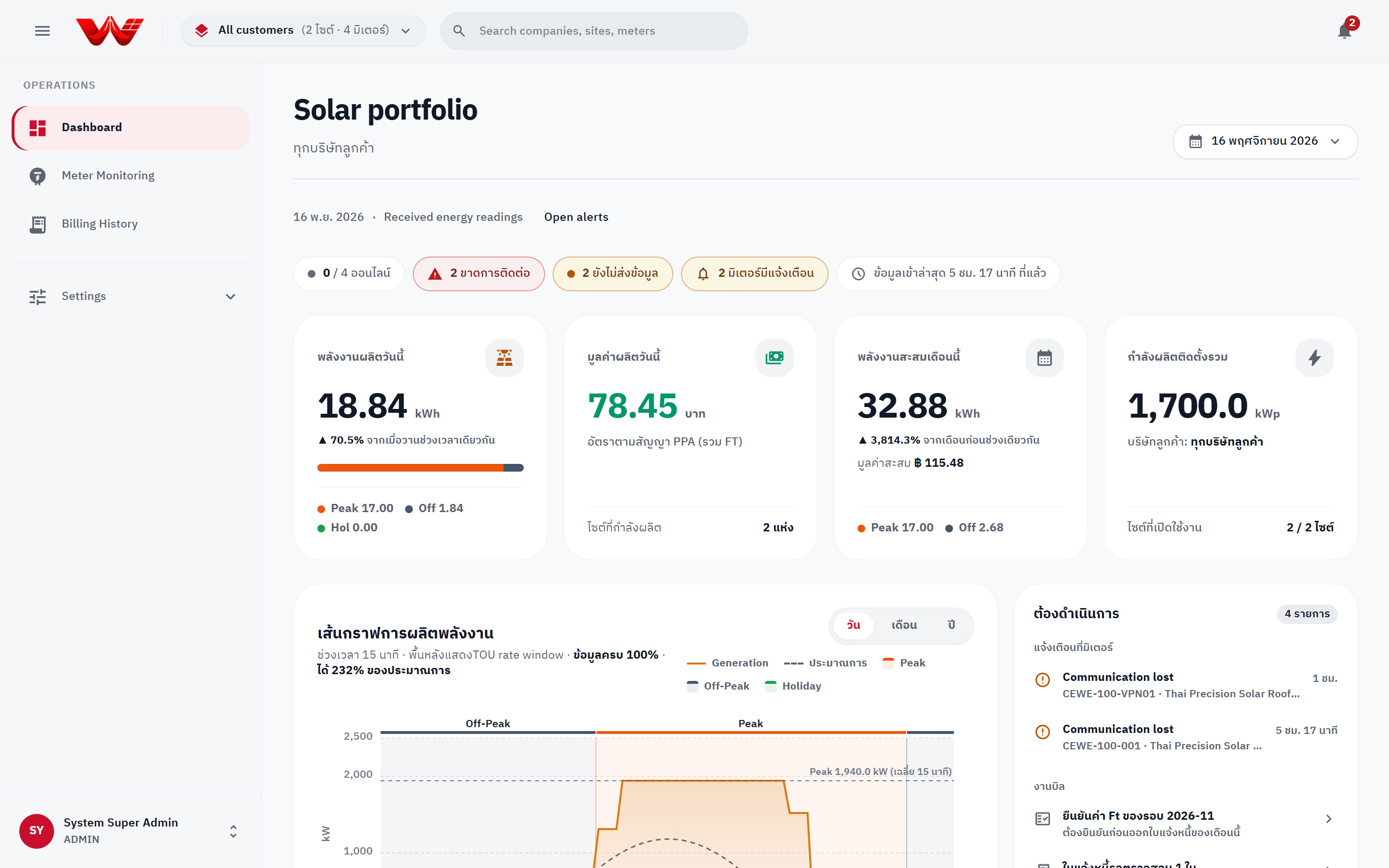
WattDee Platform Admin Portfolio Dashboard across all developers
## Manual Directory (Chapters 01 to 05)
Chapter 01 Platform Roles & Governance SUPER_ADMIN organization architecture, all 33 Platform ADMIN capabilities vs. 9 Platform SERVICE capabilities, and cross-tenant auditing. Chapter 02 Developer & Tenant Onboarding All-developers portfolio switcher, Companies directory, creating developer companies, meter limits, first admin provisioning, and cross-company transfers. Chapter 03 Global Tariffs, Ft & Reference Data Global PEA TOU tariffs, cut-off locks, monthly Ft verification (`ftrate.write`), seller bank accounts, and public holiday calendars. Chapter 04 VPN Profiles, HES & Meter Identity WireGuard (`dial`/`listen`), IPsec, OpenVPN configuration, meter destination allowlist policies, and US-1.19 serial overrides/swap confirmations. Chapter 05 Database Health, Audit Log & Support Ops PostgreSQL monthly partitions, HES sync lag, system-wide Audit Log exports, private signature storage migration, and Admin MCP usage.
::: info Admin AI Index & MCP Server Plain-text documentation index at /llms.txt, full English bundle at /en/llms-full.txt, remote HTTP MCP at https://admin-docs.wattdee.com/api/mcp, and local stdio MCP via `bun run docs:admin:mcp`. Thai version: [คู่มือผู้ดูแลแพลตฟอร์ม (`/th/`)](/th/). :::
--- ## Platform Roles & Governance Source: https://admin-docs.wattdee.com/en/01-platform-roles-and-governance ::: warning Internal Platform Documentation This guide covers privileges and governance procedures restricted to the Platform Owner organization (`SUPER_ADMIN` / `org_avg_super`). ::: # Platform Roles & Governance **Who is this for:** Platform Administrator (Platform ADMIN) Central Operations Team (Platform SERVICE) --- ## 1. Platform Owner Authorization Tier (`SUPER_ADMIN`) Accounts belonging to the platform owner organization (**Advanced Grid Co., Ltd.**, ID `org_avg_super`, `organizations.type = 'SUPER_ADMIN'`) have platform-wide tenant visibility (`tierOf(authCtx) === 'platform'`). Two assignable roles exist at the platform tier (`ROLES_ASSIGNABLE.platform`): | Role Code | UI Label | Capabilities | Responsibilities & Restrictions | | :--- | :--- | :---: | :--- | | **`ADMIN`** | **Platform administrator** | **33 / 33** | Holds every `CAPABILITIES` entry across every organization, site, meter, invoice, and shared reference table (`org.admin`, `ftrate.write`, `holiday.write`, `bank.write`, `vpn.manage`, `meter.identity.override`, `policy.read`, `invoice.*`, `telemetry.*`). | | **`SERVICE`** | **Central operations team** | **9 / 33** | Monitors meters and HES communications across **all sites**: view organizations, register/edit/replace meters (`meter.write`), send connection tests and read-now commands (`meter.command`), inspect meter IP/port/SIM (`meter.network.read`), repair 15-minute telemetry (`telemetry.sync`), view telemetry quality reasons (`telemetry.quality.read`), manage alarms (`alert.manage`), view parallel billing comparison (`invoice.compare`), and read reference rates/holidays (`reference.read`). *(Cannot manage organizations/users, edit tariffs/Ft/banks/holidays, manage VPNs, override meter serials, or issue/approve invoices.)* | ::: warning Six Platform-Admin-Only Governance Capabilities Although Solar Developer `ADMIN` accounts manage their own customers, sites, meters, and billing workflows, **6 cross-tenant capabilities** remain strictly reserved for `Platform ADMIN`: 1. **`org.admin`**: Creating/deleting developer organizations, changing organization types, adjusting `Active meter limit` quotas, moving users/sites across organizations, and inspecting the system-wide **Audit log**. 2. **`ftrate.write`**: Publishing and updating monthly **Ft rates**. 3. **`holiday.write`**: Seeding and editing the shared **Public holiday calendar**. 4. **`bank.write`**: Managing **Payment bank accounts** (platform defaults and per-developer overrides). 5. **`vpn.manage`**: Creating, editing, enabling/disabling WireGuard, IPsec, and OpenVPN **VPN profiles** and assigning meters. 6. **`meter.identity.override`**: Overriding a pending/duplicate meter **Serial number** or confirming an HES-detected meter **Swap** with a mandatory audit reason (and overriding locked customer countersignatures when authorized). ::: --- ## 2. Auditing Live Permissions (`GET /api/permissions`) 1. Open **Settings** and select any organization (Platform administration, any Solar Developer, or any Customer company). 2. Click the **People & access** tab and select **Role permissions**. 3. The portal renders a **read-only** table served directly by `GET /api/permissions` from `backend-api/src/auth/policy.ts`, guaranteeing exact alignment between the UI and API route enforcement across all 3 tiers (`platform`, `developer`, `customer`). ![Read-only Role permissions matrix in Settings](/screenshots/en/27-settings-permission-matrix.png) *Figure 1: Live server-backed Role permissions matrix in Settings.* --- ## Next Steps - [Chapter 02: Developer & Tenant Onboarding](./02-developer-and-tenant-onboarding) - [Chapter 03: Global Tariffs, Ft & Reference Data](./03-global-tariffs-ft-and-reference-data) --- ## Developer & Tenant Onboarding Source: https://admin-docs.wattdee.com/en/02-developer-and-tenant-onboarding # Developer & Tenant Onboarding **Who is this for:** Platform Administrator (Platform ADMIN) Central Operations Team (Platform SERVICE, portfolio view only) --- ## 1. Cross-Developer Portfolio Dashboard After signing in with a platform account, the **Dashboard** gives a unified real-time overview across every developer tenant and customer site: 1. **Top Portfolio Switcher:** Select **All developers** to monitor the entire platform, or filter to a single Solar Developer company. 2. **Health Strip:** Monitor live counts for `online`, `offline`, `not reporting`, `meters with alarms`, and HES projection lag. Click any chip to jump directly to the filtered meter list. 3. **4 Summary KPI Cards:** **Today Energy (kWh)**, **Today Value (THB)** *(intentionally renders `-` when aggregating sites on differing tariffs)*, **Month Cumulative Energy (kWh)**, and **Total Installed Capacity (kWp)**. 4. **Action Queue:** Highlights urgent cross-tenant tasks on the right rail, including **Verify Ft rate for YYYY-MM** (allowing immediate one-click Ft confirmation directly from the dashboard), active alarms, invoices awaiting action, and late telemetry intervals. 5. **Generation Curves & Site List:** Toggle **Day / Month / Year**, compare against clear-sky expected curves, expand **TOU Day/Month Summary**, or toggle **Table / Cards**. ![Platform Admin Portfolio Dashboard Overview](/screenshots/en/02-dashboard-overview.png) *Figure 1: Platform Admin Portfolio Dashboard across all developers with Health Strip and Action Queue.* --- ## 2. Companies Directory & Creating Solar Developers Only **Platform administrators (`org.admin`)** can create solar developer companies, delete organizations, change organization types, or adjust active meter limits. ### Browsing the Companies Directory 1. Click **Settings** > **Companies** in the left navigation sidebar. 2. Use **Search companies** to filter by Thai/English name or ID. 3. Organizations are grouped under **Platform administration**, **Developer companies**, and **Unassigned customers**. ![Settings Companies Directory](/screenshots/en/20-settings-companies-directory.png) *Figure 2: Companies directory grouped by tier, with the Add developer company action.* ### Creating a New Solar Developer Company 1. On **Settings > Companies**, click **Add developer company**. 2. Enter **Company name (Thai)** and **Company name (English)** *(required)*. 3. Keep **Organization type** set to **Solar developer**. 4. Enter tax and invoicing details: **Tax ID (13 digits)**, **Phone (shown on invoices)**, **Billing email**, and **Head office address (shown on tax invoices)**. 5. Optionally enter **Authorized signatory name**, **Signatory title**, and upload the **Authorized signature (transparent PNG/JPG/WebP)** and **Company logo**. 6. Click **Add company** to save. ![Create Developer Company Modal](/screenshots/en/21-settings-create-developer-modal.png) *Figure 3: Add company modal for creating a new solar developer tenant.* --- ## 3. Setting Active Meter Limits & Provisioning the First Company Admin 1. Open the newly created developer company, go to **Company information**, and click **Edit company profile**. 2. Set **Active meter limit** (default `100,000` active meters per developer; inactive meters are excluded) and click **Save changes**. 3. Switch to the **People & access** tab and click **Add user**. 4. Provision the tenant's first **Company administrator (`Developer ADMIN`)** with either a manual password or an auto-generated temporary password (shown once) so the developer can begin onboarding their off-takers, sites, and staff. ![Company People and Roles Management](/screenshots/en/26-settings-company-people-roles.png) *Figure 4: People & access screen used to create the developer's first administrator and verify reachable sites.* ::: tip Cross-Tenant Transfers & Deleting a Company - **Reassigning users or sites:** Only a **Platform administrator** can move an existing user between organizations or transfer an existing site to a different customer company. - **Deleting a company:** Clicking **Delete company** removes the company from active management while preserving previously issued invoices intact for tax audit compliance. ::: --- ## Next Steps - [Chapter 03: Global Tariffs, Ft Rates, Bank Accounts & Holidays](./03-global-tariffs-ft-and-reference-data) - [Chapter 04: VPN Profiles, HES & Meter Identity](./04-vpn-hes-and-meter-identity) --- ## Global Tariffs, Ft & Reference Data Source: https://admin-docs.wattdee.com/en/03-global-tariffs-ft-and-reference-data # Global Tariffs, Ft Rates, Bank Accounts & Holidays **Who is this for:** Platform Administrator (Platform ADMIN) --- ## 1. Tariffs & Billing Precision Rules (`Settings > Billing & tariffs`) Only **Platform administrators** can publish or edit system-wide billing reference data (`ftrate.write`, `bank.write`, `holiday.write`). ### Tab 1: Tariffs (`Tariff structures`) 1. Review the **Current billing rules** strip at the top (billing cut-off day, decimal places for energy/rate/amount, and power factor penalty threshold/rate). 2. Click **Add tariff** or **Edit** on an existing schedule (such as PEA TOU). 3. Configure **Tariff category**, **Start date / End date**, **Peak / Off-peak / Holiday rates**, **Service charge**, and **Bill calculation type** (`With Ft` or `Without Ft`). 4. Expand **Advanced billing rules** to set contract defaults: - **Billing cut-off day (`1–28`)** *(e.g. `25` covers the 25th to the 24th of the following month)* - **Payment due (`0–120` days after cut-off)** - **Decimal places**: energy (`0–4`), rate (`2–6`), amount (`0–4`) - **Power factor penalty (PEA)**: enable/disable, **Minimum PF threshold** (`0.85`), and **Penalty rate** (`56.07` THB/kVAR) 5. Click **Save changes**, or click **CSV** to export the tariff schedule table. ::: warning Billing Cut-Off Day Locks After First Invoice (`409`) Once a site has any non-rejected invoice, its **Billing cut-off day** locks (`409`) so historical billing periods never overlap or leave gaps. Non-cut-off fields still update, and the portal reports which sites kept their original cut-off day. ::: ### Tab 2: Monthly Ft Rates (`ftrate.write`) 1. Switch to **Monthly Ft rates** (or click **Verify Ft rate** directly from the `/billing` warning banner or Dashboard Action Queue). 2. Click **Publish Ft rate** (or **Edit** an unlocked month row). 3. Enter **Billing month** in `YYYY-MM` format (e.g., `2026-10`). 4. Enter the official ERC **Ft rate (THB/kWh)** between `-2.0000` and `10.0000` (e.g., `0.3972`). 5. Click **Save Ft rate**. ![Tariffs and Monthly Ft Rates Screen](/screenshots/en/29-settings-tariff-ft-rates.png) *Figure 1: Billing & tariffs screen showing Tariffs and Monthly Ft rates management tabs.* ::: danger Mandatory Ft Enforcement (`422`) & Month Lock - Real invoice previews and generation strictly refuse (`422`) any billing month without a saved Ft rate. *(Only the exploratory **Compare PPA rate with utility** modal `/api/billing/rate-comparison` falls back to `0.3972` THB/kWh with a visible yellow fallback warning banner.)* - Once at least one invoice for `YYYY-MM` enters `CHECKED` or `APPROVED`, that month's Ft rate is **locked** against modification. ::: --- ## 2. Payment Bank Accounts (`Settings > Bank accounts`) 1. Open **Bank accounts** under Settings. 2. Click **Add bank account** (or **Edit** an existing account). 3. Enter **Bank name**, **Branch**, and select **Seller (company receiving payments)**: - **Platform (shared by all sellers)**: Default bank account printed on invoices when no seller-specific account is configured. - **Specific Solar developer**: Prints that developer's dedicated collection bank account on their invoices and PDF exports. 4. Fill in **Account name**, **Account number**, and **PromptPay / QR number**, then click **Add account / Save changes**. --- ## 3. Public Holiday Calendar (`Settings > Holidays`) Generation recorded on weekends and dates listed in this calendar (evaluated on `Asia/Bangkok` calendar dates) automatically classifies as **Rate C (Holiday Off-Peak)** for all 24 hours. 1. Open **Holidays** under Settings. 2. **Annual preset load:** Select `2025`, `2026`, or `2027` under **Load annual public holidays (PEA / MEA calendar)** and click **Load annual holidays**. 3. **Single holiday entry:** Select **Holiday date (`YYYY-MM-DD`)**, enter an optional **Holiday name**, and click **Add holiday**. ![Bank Accounts, Holidays, Database Health, and Audit Log](/screenshots/en/30-settings-bank-holiday-system-audit.png) *Figure 2: Shared reference and governance workspace (Bank accounts, Holidays, Database health, and Audit log).* --- ## Next Steps - [Chapter 04: VPN Profiles, HES & Meter Identity](./04-vpn-hes-and-meter-identity) - [Chapter 05: Database Health, Audit Log & Support Ops](./05-database-audit-and-platform-ops) --- ## VPN Profiles, HES & Meter Identity Source: https://admin-docs.wattdee.com/en/04-vpn-hes-and-meter-identity # VPN Profiles, HES Connectivity & Meter Identity **Who is this for:** Platform Administrator (Platform ADMIN) Central Operations Team (Platform SERVICE, fleet & HES probes) --- ## 1. Managing VPN Profiles (`vpn.manage` - Platform ADMIN Only) WattDee supports shared **WireGuard**, **IPsec**, and **OpenVPN** profiles scoped to each solar developer organization so meters across all of that developer's sites can share managed tunnels. 1. Open **Settings** > choose the target **Solar developer** > click the **VPN profiles** tab. 2. Click **Add VPN profile** (or select a profile and click **Edit settings**). 3. *(Optional)* For **WireGuard** or **OpenVPN**, expand **Import configuration**, paste the router/client config text, and click **Review imported settings** to prefill fields. 4. Enter **Connection details**: - **Connection name** and **Protocol** (`WireGuard`, `IPsec`, `OpenVPN`). - **For WireGuard (Connection mode):** - **We dial the site (`dial`):** Use when the site gateway has a static public IPv4. Enter **Peer IPv4 address** and **Peer port** (default `51820`). - **The site dials us (`listen`):** Use when the site connects over **4G / CGNAT** without a public IP. Enter **Server UDP port** (`1024–65535`, default `51821`) and **open that UDP port in the server firewall** (no peer IP required). - **Allowed meter networks (CIDR):** e.g., `10.10.0.0/24` *(every meter bound to this profile must have an IP within these CIDR ranges)*. - Fill protocol credentials (WireGuard local tunnel CIDR, peer public key, keepalive; IPsec IKEv1/IKEv2, PSK or PEM certs; OpenVPN UDP/TCP, server cert name, PEM bundle, optional TLS Crypt). Check **Replace credentials** when rotating keys on an existing profile. 5. Click **Save VPN connection** and verify the status settles on **Tunnel established** (or **Runner ready**). ![Developer VPN Profiles Configuration](/screenshots/en/25-settings-company-vpn.png) *Figure 1: VPN profiles workspace displaying active tunnel status and protocol settings.* ### Assigning a VPN Profile to a Site Meter 1. Open the target site > **Connectivity** tab. 2. Select the VPN profile, choose the meter under **HES meter**, and click **Assign meter**. 3. Click **Unassign** only when detaching a meter from the tunnel *(unassigning immediately halts HES polling for that meter)*. --- ## 2. Meter Destination Allowlist Policy Outbound TCP probes (`Test connection`, `Read now`) and scheduled `.NET HES` polling support explicit IPv4 CIDR + TCP port allowlists before dialing field endpoints: 1. Inventory every active and inactive meter destination from `backend-api/`: ```bash bun run db:meter-destinations ``` *(Read-only report listing developer org, public meter ID, HES meter UUID, active state, and target `host:port`. Handle output as internal operational data.)* 2. Configure matching environment variables: - `METER_DESTINATION_POLICIES`: JSON map keyed by `developerOrgId` -> `[{ cidr, ports }]` for `hes-command-worker`. - `HES_METER_DESTINATION_POLICIES`: JSON map keyed by **HES meter UUID** -> `[{ cidr, ports }]` for `hes-service`. 3. Verify all live endpoints (including VPN subnets) in observation mode before switching on `METER_DESTINATION_MODE=enforce` and `HES_METER_DESTINATION_MODE=enforce`. *(Enforcement mode refuses loopback, link-local, multicast, unspecified, and IPv6 addresses, and verifies all DNS answers before pinning TCP connections.)* --- ## 3. Meter Identity Override & Swap Confirmation (`meter.identity.override`) Under **US-1.19**, HES discovers each meter's serial number on its first successful read and blocks billing whenever an observed serial disagrees or collides with another meter. Only **Platform ADMIN** holds `meter.identity.override`: 1. Open the site under **Settings > Meters** (or drill in from **Meter Monitoring**). 2. Inspect pending or blocked states (`Waiting for HES to read the serial`, `Duplicate serial`, or `Suspected meter swap` / `Identity check failed`). 3. Verify the physical nameplate with the developer team, then run **Correct serial** or **Confirm swap**. 4. Provide an explicit **Audit reason** *(minimum **5 characters**)*, recorded permanently in the System Audit Log. ![Site Meter Configuration and Add Meter Form](/screenshots/en/28-settings-site-meter-setup.png) *Figure 2: Site meter list used to verify HES identity states, CT/VT configuration, and perform serial overrides.* --- ## 4. Cross-Tenant Fleet Monitoring & HES Diagnostics (`Platform ADMIN` & `SERVICE`) Both `Platform ADMIN` and `Platform SERVICE` can monitor and probe meters across every developer from `/meter`: - **View as > Developers:** Aggregate online rates per Solar Developer to detect regional or VPN gateway incidents quickly. - **Meter Diagnostics (`/meter` side panel):** Run **Test connection** or **Read now** to isolate `config_error` (missing LLS secret on HES host), `auth_failed`, `operation was canceled` (`HDLC` vs `WRAPPER` mismatch), or `connect_failed` / `poll_timeout` (verify Droplet-to-container VPN routing and firewall rules). ![Fleet Meter Monitoring Board](/screenshots/en/06-meter-monitoring-fleet.png) *Figure 3: Cross-tenant Meter Monitoring fleet board sorted worst-first.* ![Meter Detail and Diagnostics Panel](/screenshots/en/09-meter-detail-status.png) *Figure 4: Meter detail and HES diagnostics panel.* --- ## Next Steps - [Chapter 05: Database Health, Audit Log & Support Ops](./05-database-audit-and-platform-ops) --- ## Database Health, Audit Log & Support Ops Source: https://admin-docs.wattdee.com/en/05-database-audit-and-platform-ops # Database Health, Audit Log & Platform Operations **Who is this for:** Platform Administrator (Platform ADMIN) Central Operations Team (Platform SERVICE, Database & system tab) --- ## 1. Database & System Health (`Settings > Database & system`) *(Accessible to `Platform ADMIN`, `Platform SERVICE`, and roles holding `meter.network.read`.)* 1. Open **Settings** > **Database & system**. 2. Inspect infrastructure metrics: - **Database size** and PostgreSQL server version. - **Monthly partitions** (`load_profile_15min` partitions): check `Ready` vs. `Partition needs extension`, along with per-partition row counts and disk sizes. *(Extend upcoming partitions proactively via `bun run --cwd backend-api db:partitions` before a new year begins.)* - **Meter data sync (HES)**: projection lag in seconds and count of active meters waiting over 1 hour. - **System record counts**: total Projects, Meters, Invoices, and Audit events. 3. Click **Refresh status** to pull live metrics (or query `/api/health/ready` via operations monitoring). --- ## 2. System Audit Log (`Settings > Audit log`) *(Restricted exclusively to **Platform ADMIN** holding `org.admin`.)* 1. Open **Audit log** under Settings. 2. Filter platform-wide activity by: - **Search audit events** (action, entity ID, or summary) - **Filter by actor email** - **Category:** `All categories`, `Meter data`, `Invoices`, `PPA contracts`, `Meters` - **From** and **To** date bounds 3. Click **Export current page** to download the visible CSV slice (use filters and pagination for historical ranges). ![Bank Accounts, Holidays, Database Health, and Audit Log](/screenshots/en/30-settings-bank-holiday-system-audit.png) *Figure 1: Platform governance views for Database & system health and Audit log exports.* --- ## 3. Private Signature Storage Migration Authorized company signatures and customer countersignatures are stored privately under `private/signatures/` and served strictly via authenticated endpoints (`Cache-Control: private, no-store`). When upgrading legacy tenants with keys still under `public/signatures/`, run from `backend-api/` against the target environment after taking backups: 1. **Dry-run inventory (read-only):** ```bash bun run db:migrate:signatures ``` 2. **Copy legacy signature objects to private storage and update references:** ```bash bun run db:migrate:signatures --apply ``` 3. **Verify signature previews and historical PDF/Excel/Word exports** across migrated organizations and invoices. 4. **Purge legacy public objects** *(only after verifying step 3)*: ```bash bun run db:migrate:signatures --purge ``` --- ## 4. Platform Support Escalations - **Replacing locked customer countersignatures (`409 Conflict`):** Once a customer or developer saves a countersigned PDF or signature image, updates return `409 Conflict` to preserve immutability. Only **Platform ADMIN** may arrange a supervised replacement after verifying approval from both counterparties. - **Recovering locked-out Company Administrators:** When all `Developer ADMIN` or `Customer ADMIN` accounts of an organization are unavailable, reset the administrator password in that organization's **People & access** tab. - **Meter quota increases & urgent early billing (`invoice.issueEarly`):** Review active meter utilization and cycle status before raising an organization's `Active meter limit` or issuing an early bill. ![WattDee Sign-In Page](/screenshots/en/01-login-page.png) *Figure 2: WattDee sign-in screen used by platform staff before switching across developer portfolios.* --- ## 5. Connecting AI Assistants & MCP to the Platform Admin Manual The Platform Admin Manual is deployed independently at **`https://admin-docs.wattdee.com`** (isolated from the public Solar Developer manual at `docs.wattdee.com`): | Interface | URL / Command | Notes | | :--- | :--- | :--- | | **Admin `/llms.txt`** | `https://admin-docs.wattdee.com/llms.txt` | Structured Thai/English index of all Platform Admin guides | | **Admin `/llms-full.txt`** | `https://admin-docs.wattdee.com/llms-full.txt` | Full Platform Admin Markdown bundle (`/th/llms-full.txt`, `/en/llms-full.txt` also published) | | **Admin Remote HTTP MCP** | `https://admin-docs.wattdee.com/api/mcp` | Streamable HTTP JSON-RPC 2.0 endpoint exposing `search_wattdee_admin_manual`, `get_wattdee_admin_guide`, and `get_role_capabilities` (including `platform` tier) | | **Admin Local Stdio MCP** | `bun run docs:admin:mcp` | Local stdio MCP server for internal platform operators | ```json { "mcpServers": { "wattdee-admin-docs": { "command": "bun", "args": ["run", "docs:admin:mcp"], "cwd": "/path/to/AMR" } } } ```